
Compress Image to 30KB Online
Browser re-encoding removes metadata even when Strip Metadata is off. Unsupported output formats use an available format. Animated images become still images. Fallback uploads the image to this website for processing.
Choose settings, then add images.
Drop, browse, or paste images
JPG, PNG, WebP, AVIF, BMP, ICO, TIFF, HEIC, HEIF, JFIF, JPE, JIF, PSD, PSB — up to 40 files, 80 MB each. Advanced formats require a compatible decoder or server. Settings apply to newly added images.
Compress Image to 30KB Online
If you need to compress a photo, screenshot, product image, document scan, or profile picture and don’t want to use tricky software, try this online image compressor. Upload your image, choose a target size, and compress the file size to 30KB or another strict limit between 1KB and 30KB.
The online tool for reducing image size to KB allows you to control file size, image quality, dimensions, output format, and bulk downloads, all from a single, clean workspace. It is perfect for job forms, admission portals, uploads to governments, email attachments, images on websites, and social media files that need to be held in a small KB.
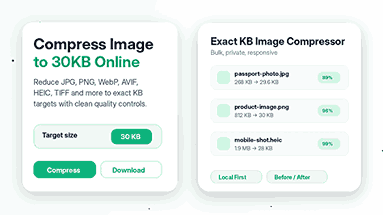
Compress Images to a Strict KB Limit
Some sites will not accept images that are over a certain upload limit. A regular photo taken with a phone can easily be several megabytes in size. Forms often ask for 10KB, 20KB, 25KB, or 30KB. This compressor has direct size presets so you can pick the target you need instead of guessing at random quality sliders.
Select Auto for rapid optimization or specify an exact goal (1KB, 5KB, 10KB, 20KB, 30KB). The compressor controls quality and can resize the image when necessary, bringing the end file closer to the limit selected but remaining useable.
Why This Online Image Compressor Is Helpful
Saves time on strict upload forms
Web forms usually cut off the upload process, even if the image is just a slightly larger size than the allowed size. This tool spares you from trial and error again and again. You select the desired KB target, run the image, and download a file that meets the requirement, provided the source image permits it.
It simplifies the workflow
No Photoshop, no desktop software, no technical settings. The compressor keeps the main options visible. Key features include compression quality, target KB, output format, resize settings, metadata removal, a watermark, and download buttons. This layout allows beginners and advanced users to finish the task more quickly.
Controls Both File Size and Quality
You have to compromise with tiny file sizes, but the Compress Image to 30KB Online tool tries to maintain clarity to the best of its ability. It can keep the smaller version only if the result is useful, display a closer result if a target is too aggressive, and let you compare the output before you save it.
How to Compress Image to 30KB Online
Upload Your Image
First, upload your image by dragging and dropping it into the upload box, or by browsing from your device, or by pasting an image from your clipboard. This tool supports common web images, as well as some advanced image formats, so you can handle most of your daily compression tasks all in one place.
Selecting the Target File Size
Now, open the Target Size dropdown and select 30KB. Furthermore, if your upload form requires a different limit, you can set it to a value between 1KB and 30KB. If you need a tiny target, leave Resize Assist on—smaller dimensions often help the compressor keep the image clearer.
Choosing the Output Format
Define your output format. Maintain the formatting. If the site asks for a specific format, choose JPG, PNG, WebP, or AVIF.
Reduce and Save Your Image
For each file, hit the compression action, verify the new size, and download the result. If you want the whole batch together, you can compress several files together and then use the “Download ZIP” option.
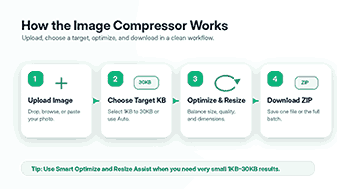
Compress Image from 1KB to 30KB
Preset File Size Targets for Simple Choice
This Compress Image to 30KB Online tool offers small target presets from 1KB to 30KB, so it is useful for portals with very tight file size restrictions. You can choose 1KB, 2KB, 3KB, 4KB, 5KB, and all the way up to 30KB without typing the value.
How to Choose the Best Target for Your Type of Image
Smaller targets benefit from simple images, small signatures, icons, and low-detail profile photos. The larger targets, such as 20KB or 30KB, will generally produce a better visual quality, especially if you are uploading passport photos, product images, or documents where you want the details to be legible.
Trustworthy Results and Reliable Compression
If the original file is too detailed for the selected limit, the compressor will give you the next best result instead of pretending it can always meet all targets. This honest behavior means you can trust the output and change dimensions or quality as you like.
Normal-Quality Compression versus Exact KB Compression
Classical image compressor limitation
Most regular image compressors have a quality slider. This trick is useful if you only want a smaller file, but it doesn’t impose a strict upload limit. You may need to try a few times to get the image to be 30 KB or 20 KB.
Benefits of Targeted KB Compression
Targeting exact KB compression, the compressor checks real output settings, downgrades quality where necessary, and can resize the image if you allow it. This method is better for forms, applications, and websites that impose a fixed maximum size.
Image Complexity and Compression Results
The best result depends on the original image. A simple signature or icon is not as difficult to reduce to a tiny size as a detailed photo. You may have to resize a portrait that is very high resolution to get it under 30KB but still clear.
Supported Image Formats
JPG, JPEG, JPE, JFIF, JIF
JPG is still one of the most popular formats for photos, profile pictures, passport images, and scanned forms. JPG: Use when you need broad compatibility and a small file size. This compressor can compress JPG images to strict KB targets and also convert transparent images to JPG with a selected background color.
PNG
PNG is ideal for graphics, screenshots, logos, and images that need transparency. PNGs can be large, so compressing and scaling can often make a big difference. If you need to keep transparency, then you need to use PNG. Otherwise, use WebP or JPG for a small KB limit.
AVIF and WebP
WebP and AVIF are newer formats, typically smaller in file size than older formats. Use them for website images, blog graphics, and performance-driven projects where your platform supports them. These formats will help you reduce file size while keeping clean visual quality.
HEIC and HEIF
Many iPhone photos use HEIC or HEIF. This compressor knows those formats and can translate to a more upload-friendly output (if supported). If the browser does not support an HEIC file, the tool can use fallback handling if the WordPress hosting environment supports it.
TIFF, TIF, BMP, ICO
TIFF and BMP files are typically large because they contain high-quality image data. ICO files are suitable for icons and favicons. The compressor handles these extensions and can process them with either browser or server fallback, depending on the format and hosting support.
PSB and PSD
PSD and PSB files are professional design formats, not standard web image formats. The tool takes them at their word and does server-side Imagick fallback if the hosting server supports it. If the server is unable to process them, the Compress Image to 30KB Online tool shows a clear message instead of a fake success result.
Resize & compress both
What is image size and compression of files?
The quality is not very good, but the size is large, which makes the file size larger. Not many online forms require anything like 4000 pixels in a phone photo. Sometimes it is better to resize the image before or during compression than to try to stuff a giant image into a tiny KB target .
Select the Correct Resize Presets
Fast results with resize presets. Depending on your use case, use max-widths of 1920px, 1200px, 800px, or 512px. The smaller sizes keep the file size down but still have enough detail for profile photos and portal uploads.
Getting the Aspect Ratio Right
Don’t want a stretched face, distorted logo, or squeezed product image; keep the aspect ratio locked. Custom sizes are only required if a platform has specific width and height requirements.
Choose Your Output Format
JPG images for
Configure JPG for portraits, passport photos, product photos, and normal camera photos. JPG files are usually small and work on almost all websites. No support for transparency. So, while converting transparent images to JPG, the tool gives you an option to choose a background color.
Use PNG for transparency
The PNG files are ideal for transparent backgrounds, logos, or clean screenshots. PNG files can be large and not the best if your target is tiny (say, 5KB or 10KB) unless the picture is basic.
Use WebP or AVIF for modern web performance
As web assets, consider WebP or AVIF if your audience and delivery mechanism can handle modern formats. These outputs can help reduce file weight and help pages load faster, especially when you combine compression with sensible dimensions.
Local Processing in Private for Popular Formats
Whenever you compress personal documents, ID photos, signatures, product drafts, or client media, privacy is a concern. Where possible, the compressor will use the formats supported by the browser so your workflow is fast and private.
Advanced formats may require special decoding support. If the browser cannot read formats such as PSD, PSB, HEIC, TIFF, AVIF, ICO, or BMP, the tool can fall back to a WordPress server if that server has the appropriate image library enabled. The Compress Image to 30KB Online tool reports that it preserves the transparency established during fallback processing.
Bulk Image Compressor with ZIP Download
Bulk compression helps if you want to optimize many images for a website, product gallery, student portal, client folder, or social media campaign. Upload several images, compress them with the same settings, and download the whole batch as a ZIP file.
The Compress Image to 30KB Online tool also shows useful stats like total files, saved size, average reduction, and target hits. These details let you check that the batch actually did improve your images before you upload them anywhere.
Preview Before and After
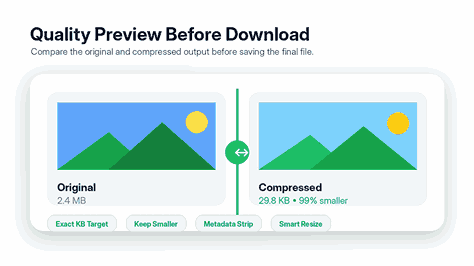
Compression should never be a blind process. Use the before-and-after preview to compare the original file with the optimized output. This preview allows you to check faces, text, logos, edges, and important details before downloading the final version.
The output is too soft; try increasing the quality, choosing a bigger target size, or scaling down the dimensions more efficiently. Or resize the image. If that file is still too large, try a higher compression level, or use WebP or JPG.
Watermark and Metadata Options
The watermark option is useful to protect preview images, product drafts, sample photos, and client proofs. Add a short text watermark and set its position and opacity so the mark is visible, but not so heavy that it covers the image too much.
The metadata strip option helps to remove unwanted data that many images can carry. This can help reduce the size of the file, as well as remove unwanted information from the output. Use it when you want a cleaner file to upload to the web or share with the world.
Passport Photos & Forms Optimal Settings
Pick a JPG as the output and pick the target size for passport photos, job forms, admission portals, and exam profiles. If the form is 30KB, select 30KB and leave Resize Assist on. Use a clean background and don’t use heavy filters; simple images compress better.
If the face is blurry, increase the target up to the maximum allowed. Use 30KB rather than 20KB if the portal allows it. Furthermore, you can crop off the extra space before compression to make the important topic clearer.
Best Settings for Images on the Web
Do not upload original camera files for website images. Resize large images to a display size and compress them. A blog image, thumbnail, or product photo usually doesn’t need to be the full size taken by a modern phone or camera.
In case your website supports modern formats, enabling WebP or AVIF support is recommended. PNG is suitable for transparent images. JPG is a useful fallback for images. Smaller image files will help your mobile loading speeds and user experience.
Best setup for messaging & email
Normally, smaller images tend to be more effective for email attachments and messaging apps. Choose JPG or WebP. Use Auto or set a target size, such as 30KB. Maintain the image dimensions practically. This makes files easier to send, to download, and to store.
To upload multiple images, zip them together and then upload them. One ZIP file keeps the output organized and allows you to save time when sharing multiple optimized images.
Common Compression Mistakes to Avoid
Don’t attempt to photograph a close-up target that’s too small
A detailed image won’t always be clear at 1KB, 2KB, or 5KB. Use small targets for icons, signatures, and simple graphics. If the platform allows, use 20KB or 30KB for photos.
Don’t keep large dimensions if the final image is small
Bigger files = bigger dimensions. Force under a strict KB target. Resize the 4000px image. This provides the compressor more freedom to retain visible quality.
Please ensure that the correct output format is used
Photos are best in image files. PNG is best for transparency. Modern sites are often best served as WebP or AVIF. Using the wrong format can mean the file size gets unnecessarily large, or the quality drops.
Who Can Use This Image Compressor?
The Role of Photos on Admission and Application Forms
Student photo uploads on exam portals and admission forms often require a specific file size. A photo is required for a resume, profile picture, certificates, and online applications.
Professional Tools for Digital Image Compression
It is a fantastic tool for bloggers, SEO teams, developers, store owners, and designers to reduce website image size before uploading content. Optimizing images down to a smaller size makes pages feel faster and keeps media libraries tidy.
Average users can email smaller photos, create smaller profile images, convert mobile photos, and save storage space without learning professional image software.
Frequently asked questions
How do I compress an image to 30KB online?
Upload your image, choose 30KB from the target size drop-down, leave Resize Assist checked, and run the compressor. When the tool completes processing, download the optimized image.
How do I reduce online images to 20KB?
Yes. Select 20KB from the target size list and compress the image. If the image appears too soft, try to resize it first or upload it at the largest file size your upload form allows.
Can the target size be set anywhere between 1KB and 30KB?
Yes. The target size menu has small presets from 1KB to 30KB, so you can pick the exact limit your form needs.
Does compression affect image quality?
Yes, compression can reduce some quality, particularly at very small targets. Detail, sharpness, and pixel density may all decrease as the file size gets smaller. For best results, use the highest target size your upload form allows.
What is the smallest file format?
WebP and AVIF are lighter for the web. Photos are acceptable in JPEG format. It works with a number of the systems. PNG files have more transparency, but they can be larger in file size.
Can I compress HEIC photos from my iPhone?
Yes. It supports files in HEIC and HEIF formats. The host server handles browser support and fallback (if any).
Can I compress PSD or PSB files?
PSD and PSB files are supported when ImageMagick support is enabled on the host server (server-side fallback). If the server does not support the format, the tool returns an explicit error message.
Can I compress several images simultaneously?
Yes. Upload several files, change your preferences, and download all images in an optimized ZIP file.
Should I use JPG, PNG, WebP, or AVIF?
JPG works best for photos. PNG is the right choice when you need transparency. For modern web images, WebP offers excellent compression. If your platform supports it, AVIF can reduce file size even further.
Why can’t my image be 1KB?
Some images are too detailed to fit into 1KB. Try a larger target such as 20KB or 30KB. Reduce the space and the dimensions.
Will this compressor work for SEO sites?
Yes. Large images can slow down page loading, especially on mobile devices. Properly optimizing your images will help your site look cleaner and more professional and enhance the user experience.
Can I preview quality before downloading?
Yes. Use the before-and-after preview to compare the original and compressed image before saving.
Why Small Image Size Matters
Tiny images load faster and save bandwidth. They also aid visitors with slower connections to view content more smoothly. Optimizing images before you publish reduces unnecessary weight on your site and improves the browsing experience.
Online image compression also helps you to stick to strict technical rules. Many portals have limitations because they have to keep thousands of user files. A good image compressor will keep you within those limits without having to constantly edit the image by hand.
How to Get Better Quality at 30KB
Start with a High-Quality Original Picture
A pristine original image. Avoid wasting your time on screenshots of screenshots, blurry photos, and heavily filtered images, as these do not compress well. A good origin gives the compressor more pixels to work with.
Prune crops to preserve key details.
Crop tightly around the subject before compressing. Removing extra background space reduces the total pixel count and allows the compressor more room to keep important details sharp.
Make use of the max file size allowed.
Make use of the largest target size allowed. If a site can only be a maximum of 30KB, only choose 10KB if necessary. More KB means more room in the compressor to keep edges, colors, and details clear.
Final Recommendation
This is the online image compressor to choose if you want small images, simple controls, and rapid processing. Choose an exact size between 1KB and 30KB, resize if needed, select the right format, preview your result, and download a single image or a full ZIP batch.
The tool provides a pragmatic trade-off between speed, quality, privacy, and flexibility. It complies with the strictest uploading constraints without the need for complex software and gives you just enough control to create clean images for forms, websites, emails, and everyday sharing.
Why Our Tool Stands Out
This tool is simple but has advanced options, unlike other compressors. You don’t need to be technical to drag and drop, compress, and download. It’s fast, private, and designed for full control of your images. Easily optimize your site and give your visitors a seamless, professional experience.
Get Started Today
The tool optimizes your images. Your site loads faster and is search engine-friendly and user-friendly. No sign-up, no hidden processes. Simply fast, quality image optimization that will make your content shine.