
Free Online PDF Suite
Processing…
No files are uploaded to a server. Conversion runs in your browser using bundled local libraries.
Export readable Word-compatible RTF
Extract clean plain text
Convert selected pages to PNG/JPG
Create simple searchable HTML
Export text rows to CSV
Turn PDF text into Markdown
Convert DOCX text to PDF
Build one PDF from images
Convert TXT/MD to PDF
Render HTML file to PDF
Create PDF table from CSV
Combine PDFs in selected order
Save each page as separate PDF
Save selected page range
Delete selected PDF pages
Rearrange every page in custom order
Rotate all or selected pages
Apply page margin crop
Add blank page after any page
Detect and skip blank pages
Add custom text watermark
Add flexible page numbering
Stamp legal-style page IDs
Add typed signature stamp
Add date or custom footer stamp
Update title, author, keywords
Remove document metadata fields
Re-save with object streams
Re-save parseable PDF structure
Rasterize pages into a new PDF
Generate pages and metadata report
Count words, chars, and pages
Create text comparison report
Free Online PDF Suite: 33 Tools to Convert, Edit, Organize, and Optimize PDF Files
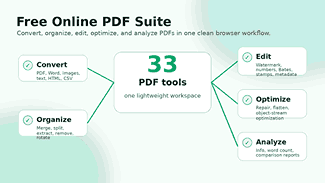
Need to do some quick document work without hopping from website to website? Use this free online PDF suite. It helps you convert files, merge PDFs, split pages, add watermarks, create page numbers, repair files, flatten pages, check document details, and compare PDF text from one clean workspace.
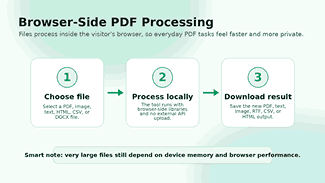
The tool works natively in the browser for everyday PDF tasks. Select a file, choose the action you need, customize the available options, and download the finished result. It feels simple because each tool follows the same, clear flow.
Why This Free Online PDF Suite Saves Time
PDF work is generally slow because one thing leads to another. You can convert a document, compress it, delete a page, add a watermark, and check the final file. A one-off purpose converter can help, but it cannot power the entire workflow.
This all-in-one online tool suite brings together the most useful tools in one package. You no longer need to search for a merger, page remover, text extractor, image converter, watermark tool, or PDF analyzer. You can continue to work in the same interface and finish the document faster.
Built for Real PDF Tasks, Not Empty Promises
The point of a PDF tool is to do as much as possible. This suite is for functions that deal with robust document libraries and browser-side processing. It does not claim to have sophisticated capabilities based on other tech, such as actual OCR, crypto signatures, password bypasses, or secure redactions.
The simple approach makes the tool more trustworthy. When you click on a tool card, you know the feature is there for a practical reason. The interface is user-friendly, the options are useful, and the file is processed to give you an output that is suitable according to the selected task.
How does the PDF Suite work?
Pick the tool that matches what you need to do. You can search by name or filter by category—convert, organize, edit, optimize, or analyze. Each tool card tells you exactly what it does and what file it accepts.
Upload your file, adjust any available settings, and download the result. The flow is the same across every tool, so once you use one, the rest feel familiar.
The Advantages and Uses of PDF Format
What is a PDF?
That means Portable Document Format. This file format keeps your fonts, graphics, layout, and page numbering so your documents look the same and professional.
Benefits of Using PDF Format
It is useful for contracts, manuals, invoices, academic papers, brochures, etc. It saves time, and there is no room for misinterpretation. A free online PDF suite makes it effortless to manage pages, edit text and images, secure content, and convert to and from PDFs.
Experience Efficient Document Handling
Created to save you time, work fast, and hit your professional standards every time you share a document. Try it out and see how effortless document management can be with PDF Suite Online. Open the suite, pick any tool, and start working. No account needed, no waiting.
Convert PDFs & Words with No Extra Steps
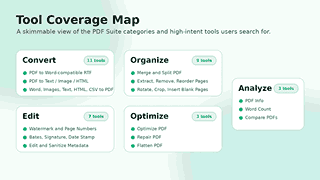
The “convert” category assists you in converting content between common formats. You can extract clean text, image files, simple HTML, CSV rows, or Markdown from a PDF. You are also able to export to a readable RTF file, compatible with Word and open in Microsoft Word, Google Docs, LibreOffice, and similar editors.
This all-in-one PDF software also allows you to convert files to PDFs. Convert DOCX, images, plain text, markdown, HTML, and CSV to PDF. These tools are useful for everyday publishing, sharing, printing, and record-keeping.
PDF-to-Word compatible RTF
To extract editable text from a PDF, use the PDF to Word tool. It exports a Rich Text Format file that is compatible with Word, not a fake DOCX package. That keeps the feature honest and lets users open the output in common word processors.
The software supports export to PDF, Text, HTML, Markdown, and CSV
If you want a clean copy of a document, then PDF-to-text conversion is the option to go with. Select PDF to HTML for web-optimized Searchable Results. Select PDF to Markdown for notes, drafts, and content workflows. PDF to CSV – When you have rows of text in the document that you want to convert into a spreadsheet-like format, use this option.
Image to PDF
Convert PDF to Image lets you save selected pages of a PDF file as PNG or JPG images. Great for previews, thumbnails, teaching materials, snippets for social media, screenshots of documents, and sharing things visually quickly.
Create PDF files from images, texts, HTML, CSV, and DOCX
The suite can convert standard input files to PDF. Combine multiple images into a single PDF, convert text or Markdown to a readable PDF, render an HTML file, generate a PDF table from CSV data, or convert DOCX text to a portable document.
Before turning multiple photos or scans into a PDF, you can compress images online to reduce file size and share faster.
Organize PDF Pages with Greater Control
Standard PDF organizers are useful when you have the right content but the wrong structure. You will need to merge several files, delete an extra page, extract a chapter, rotate scanned pages, crop margins, or add a blank page for printing and notes.
This free suite gives you direct, page-level control. It supports merging, splitting, extracting, removing, reordering, rotating, cropping, inserting blank pages, and removing blank pages. These tools assist with the most common structure fixes that people want to make before sharing or submitting a file.
Merge PDFs in the Correct Order
Combine PDFs. Merge multiple files into a single document. A useful tool for invoices, assignments, contracts, reports, application packages, scanned records, and multi-part resources You can also arrange the PDFs in any order you want before saving the final file.
Extract / Remove PDF Pages
Split PDF – each page is saved as a separate file. If you need only some pages or a chosen range, use Extract Pages. These tools enable you to share just the relevant portion of the document, not the whole file.
Remove, Reorder, Rotate & Crop Pages
Remove Pages will delete unwanted pages. Reorder Pages to sort the document in your own order. Fix sideways pages with Rotate PDF, and trim the margins or focus on the page area with Crop PDF. These tools give a document a cleaner feel before it’s delivered.
Insert or Delete Blank Pages
Insert Blank Page. You can prepare a file for printing, signatures, cover sheets, or note sections. Remove Blank Pages helps clean up scanned PDFs by finding and skipping pages that have no meaningful visible content.
Tools to Edit PDFs, Practical Stamps, and Metadata
Category edits are about visible document additions and metadata updates. Add watermarks, page numbers, Bates numbers in legal style, typed signature stamps, date stamps, and custom metadata. You can also sanitize metadata if you want to remove the title, author, subject, or keyword fields.
These editing tools are best suited for light finishing work. These don’t replace a full desktop PDF editor for deep text rewriting, but they help you prepare professional-looking files fast.
Watermark Text
You can add your own text to pages with Watermark PDF. A watermark can mark a document as draft, sample, confidential, approved, paid, or internal. The tool offers a quick way for you to brand or label a file prior to sharing it.
Add Page Numbers and Bates numbers
Page numbers help the reader move through long documents. The Bates Numbering provides structured page IDs for legal, administrative, and record-based workflows. Both tools are appropriate for documents that require clear citation and professional indexing.
Add Signature and Date Stamps
The Signature Stamp tool adds a typed visual stamp to your document. It’s excellent for rapid document drafting and internal approvals, but it’s not a cryptographic digital signature or a legally authorized e-signature. The Date Stamp tool lets you add a date or custom footer so that recipients can see when the file was prepared.
Edit or Clean Metadata
Metadata (titles, authors, subjects, keywords, etc.) can be embedded in the Portable Document Format. These fields are editable in the Edit Metadata tool. If you want to publish or share a cleaner file, use the Sanitize Metadata tool to remove common metadata values.
Repair, Optimize, and Flatten PDF Files
The “optimize” category helps you create cleaner output files. PDF Optimizer re-saves the document with object streams that can reduce many files and improve the structure. The results may vary: image-heavy PDFs may need actual image recompression for significant shrinkage.
Repair PDF restores a readable PDF structure from the loaded file. If a document is opening with difficulty or if there are structural problems, occasionally a clean save will assist. Flatten PDF converts the document into image-based pages, locking the visual layout in place. This is useful when you want every viewer to see the same thing—regardless of the device, viewer, or software they use.
When to Use Optimize PDF
Before you send or upload a PDF, it’s worth running it through the optimizer first. Files can quietly collect unused objects and structural clutter after multiple saves or edits—optimization helps clean that up. Just check the finished file afterward to confirm the quality held up and that the size is where you need it.
When to Use RepairPDF
Try Repair PDF if the file acts weird, doesn’t load well in some viewers, or requires a new structure. It doesn’t magically rebuild every damaged file, but it does provide you with a usable rebuild option from within the same suite.
When to use Flatten PDF
Use a flat PDF when you want to keep what users see on the page. Flattening helps with forms, visual stamps, or layered content. The output file may be larger than the original, because the process generates image-based pages.
Review PDFs before sharing them
The “analyze” category lets you preview documents before you download, publish, or distribute. PDF Info makes a report with page count and metadata. Word Count estimates words, characters, and pages. The Compare PDFs tool generates a text report that compares two PDF files.
These tools help you catch problems before anybody else does. You can see the file length, look over the extracted text, compare two drafts, or review the metadata that travels with the document.
Info Report PDF
Use PDF Info to get a quick summary of any document. The report shows total page count, available metadata, and general file details — useful before you share, archive, or publish a file.
Word Count .pdf
Word Count will tell you how long a document is in no time. It is particularly useful for reports, homework, content drafts, policy documents, contracts, and publishing workflows that require a word or character count.
Compare Two PDF Files
Compare PDFs if you have two different versions of a document that you want to compare. The tool pulls out the text and creates a comparison report, so you can see the changes, identify what’s missing, and compare drafts without having to read every page twice.
Browser-Side Processing for Everyday Privacy
Many people are concerned about uploading private PDFs to random servers. This PDF suite performs common tasks within the visitor’s browser and does not rely on an external API upload for the actions of the tool. That design makes everyday paperwork more private and more convenient.
You still need to use good judgment when it comes to sensitive files. Use a trusted device, keep your browser up-to-date, and don’t use public computers for private documents. The best workflow is to process the browser side, but strong privacy also depends on how and where you use the tool.
A Clean Interface That Works on Mobile
A powerful tool should still be simple. The suite includes a clean card layout, rounded green buttons, category filters, search, drag and drop, and mobile-friendly spacing. Users can quickly find the right tool instead of scrolling through a wall of confusing links.
Responsive layout works on phones, tablets, laptops, and desktops. The tool cards are still legible on smaller devices, and tapping the controls is simple enough. This capability is a key feature, as a large number of users now open, scan, and share documents directly from mobile browsers.
Who Is This Online PDF Suite For?
Students can merge notes, pull pages from assignments, convert PDFs to text, and create PDFs from images. Teachers can create handouts, number pages, preview the scanned page images, and collect course material. Freelancers and designers can send watermarked samples, date-stamped drafts, and polished project files — all prepared and exported from one place.
Another feature is the free letter-of-application generator, where students can save, convert, or share their final document as a PDF.
Office teams can sort invoices, repair files, add page numbers, create PDF tables from CSV data, compare drafts, and verify document info. Convert your content and process document drafts into downloadable PDFs without the need to install heavy desktop software.
Teams with exported CSV files can also use an Excel formula generator to generate formulas faster.
Why It’s A Competitor To Popular PDF Tool Websites
Users tend to choose PDF tools based on speed, clarity, and trust. They want a fast tool that has a clear explanation of what each function does, accepts the right files, and gives a useful download. This set has an intuitive layout and various practical tools to meet those requirements.
It doesn’t promise every advanced PDF feature, but it handles the daily tasks that deliver the most value. Complete workflow with tools for converting, merging, splitting, deleting, rotating, cropping, watermarking, numbering, optimizing, repairing, flattening, analyzing, and comparing common PDF problems.
Frequently Asked Questions
Is this PDF suite free?
Absolutely. This page is a free online PDF suite to assist you with everyday document tasks. Users can choose a tool, process a supported file, and download the results, all within the browser workflow.
Do I need to install any software?
Visitors don’t need to install anything. The suite runs inside the browser, so users can access the tools from a WordPress page using the PDF suite shortcode.
Can I merge and split PDF documents?
Yes. You can combine multiple PDF files into one document, split a PDF file into pages, extract pages, delete pages, reorder pages, rotate pages, and crop pages.
How to convert PDF to Word?
Yes. The PDF to Word tool exports an RTF file that is compatible with Word. RTF opens in common word processors and gives the user editable text without pretending to be some kind of native DOCX export.
Can I compress PDFs?
The suite features an Optimize PDF tool that resaves PDFs with object streams. It can reduce many documents, but the result depends on the file. For image-heavy PDFs, a major size reduction might require dedicated image recompression.
Does the suite include OCR?
No. The suite does not advertise OCR because OCR needs a dedicated recognition engine. This keeps the tool honest, and users don’t expect scanned image text to convert like selectable PDF text.
Can I add my digital signature?
There is a typed visual signature stamp you can add. This may be good for simple document marking, but it is not to be confused with a cryptographic digital signature or a legally validated e-signature service.
Are my PDF files stored on a server?
The suite is intended for browser-side processing and does not rely on external API uploads for its tool actions. For private documents, users should still use trusted devices and avoid using public computers.
Which file formats does the suite support?
The supported inputs depend on the tool chosen. Most of the actions in the suite work with PDFs, but it also supports image, text, Markdown, HTML, CSV, and DOCX text conversions with relevant tools.
Why use one PDF suite instead of separate tools?
A suite saves time because PDF workflows rarely involve a single step. Edit, convert, organize, optimize, and analyze files all in one place, without having to search for a new tool after every action.
Best Ways to Use the PDF Suite
Choosing the Right File Conversion Format
First, decide the end format required for the file conversion. PDF to Text is for copying text. PDF to Image is for images. RTF for editing text, PDF to Word compatible. Images to PDF is for putting photos or scans together in one document.
Getting your document organized and tidy
Order tools to clean up the page. First, combine the files, delete unwanted pages, reorder pages, rotate sideways scans, and crop margins; then add page numbers or watermarks. This flow provides a cleaner final document with less duplication of downloads.
Final review and optimization before publishing
Keep in mind that you should verify the file before you publish it. PDF Info – Review Metadata. Estimate length with a word count. Compare PDFs to see what’s changed between drafts. Please ensure that you optimize or flatten the file as part of your workflow.
Tips for Better PDF Output
Why clean source files are important
Where possible, use clean source files. Clean images, well-formatted text files, and valid PDFs provide better outputs. Scanned pages may be blurry. We do not guarantee the book is 100% accurate. Text conversion and extraction may not be 100% accurate.
File size and device performance considerations
See the size of file. Browser-based tools use your device memory and may be slower or need a more powerful device for large PDFs. To ensure the best performance, close other browser tabs when processing large documents.
How to view your downloaded files
Check each file downloaded. Open the output file. Ensure the pages are in sequence. Look at stamps or numbers. Check that the output is what you desire. A simple proofread may save you from errors before you send, upload, submit, or publish the document.
Performance, Accessibility and Usability
- Handles large, image-heavy PDFs without significant slowdown in most modern browsers.
- Supports tagging screen readers for keyboard navigation accessibility
- The interface is clean, the controls are clear, and the Undo/Redo functions are straightforward to use.
- The package consists of templates and sample files to help you get up and running quickly.
Simple tools that let you undo mistakes without friction make the whole experience less stressful. PDF Suite Online is built to help you work quickly, confidently, and without second-guessing every action.
Get Started Using the Free Online PDF Suite
Just choose the PDF tool you need, upload your file, adjust the settings, and download the result. Need to change a PDF into something else? Need to merge files? Split pages? Add a watermark? Number the pages? Fix a document? Flatten? Compare two versions? This free online PDF suite is a quicker way to work with your PDF files.
The best part is the workflow. There’s no need to understand complex software or install a desktop program for common PDF tasks. The suite has everything in order, is readable, and is practical to solve document problems in minutes.