Bill receipt maker
EVERYDAY BUSINESS RECORDS
Bill receipt maker for itemized bills and payments
Create a detailed invoice or payment receipt using your company details, customer information, and the amounts due or received. This receipt maker combines an editor with an instant preview, allowing you to review your file before downloading it as a PDF.
For example, use it for in-store sales, freelance work, service fees, or advance bill payments. For instance, you can add discounts, labor charges, shipping costs, and payment references when the transaction requires them.
Choose from 13 document types and seven templates.
Record quantities, per-unit prices, payments, and balances in a single document.
Download PDF file or save editable document data as JSON.
Create a receipt in the tool above.
FROM DETAILS TO DOWNLOAD
Create a receipt in four steps
You can use this receipt maker tool online without needing to start from a blank document. Work through the editing tabs, then preview your document.
1
Choose a document: select a bill receipt, payment receipt, or any other type of document. Next, specify the currency, document number, and dates.
2
Add both parties: Enter your company details and the names of the customers. This includes useful contact information.
3
Describe the transaction: Add items or services, quantities, units, and prices. Then, enter the payment you have actually received.
4
View and download: See the preview, total amount, amount paid, and outstanding balance. Finally, download the document as a PDF or print it.
Tip: Before sharing your completed document, check names, dates, and payment references against your records.
DOCUMENT TYPES
Choose the document that fits the transaction
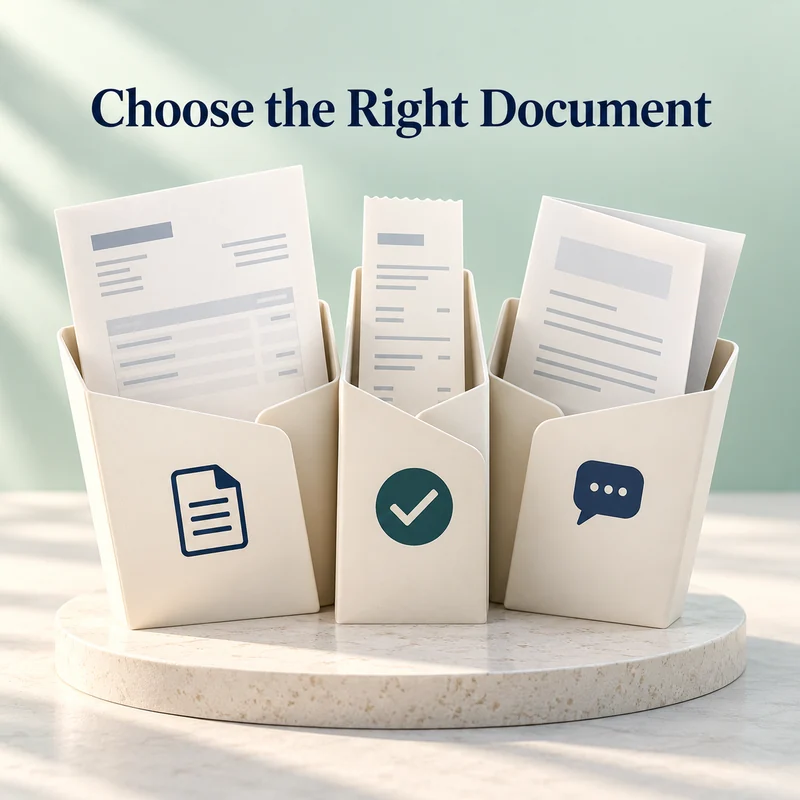
Use invoices to show what customers owe, receipts to record payments received, or quotes to outline the work you offer and the associated costs. Therefore, choose the document type that matches the transaction.
Simple invoice or service bill: A bill for goods or services.
Payment receipt or cash receipt: Record the payment received.
Quote or estimate: State your proposed price.
Delivery Challan or Purchase Order: Enter delivery details or the supplier order.
Tax invoices, pro forma invoices, sales receipts, advance payment receipts, and payment receipts round out the 13 document options. However, document labels do not verify transactions or determine their tax treatment.
TOTALS EXPLAINED
Understand the total and balance due
The bill/invoice generator calculates the line amount based on quantity and price, and then applies any adjustments you have entered. Discounts applied to specific items reduce the line amount. For example, a percentage discount reduces the value of the relevant item row.
Illustrative example without taxes:
Entry
Amount in PKR
Two items at 1,500 each
3,000.00
One service
2,000.00
Subtotal
5,000.00
Overall flat discount
−500.00
Delivery charge
+200.00
Grand total
4,700.00
Amount paid
2,000.00
Balance due
2,700.00
If you need a written amount for your payment notes, convert the amount into words and check that it matches the numeric total.
The amount is rounded to two decimal places. GST is applied to each discounted line. Total taxes and withholding taxes are calculated based on the total discounted subtotal, while case-specific taxes remain separate.
Disclaimer: Tax entries are manual. Confirm the applicable rates and document requirements for your business. This tool does not provide tax advice or filing.

PAYMENT HISTORY
Record later payments without counting them twice
Enter the initial payment in the Amount Paid or Receipt Received field. After that, record later payments with their dates, methods, and references. The remaining balance accounts for the original amount, any withdrawals made, and other additional entries.
For example, if you have already entered a deposit, do not add that same amount to your history again. Only the next payment should be recorded.
Select Create Receipt next to the entry to create an associated receipt for this payment. The original file remains in your saved history, so you can keep your invoice and its payment history together.
SAVE REPEAT DETAILS
Reuse details for repeat transactions
Save your business profile, including contact information and brand details, then apply it to another document. In addition, saved customer profiles let you reuse customer details, while item and service catalogs retain descriptions, units, prices, discounts, and tax settings.
For transactions of this type, create a copy of the file instead of restoring it. The copy starts with cleared payments so that amounts from the previous transaction do not carry over to the new sale.
You can also set a prefix for the number and generate the next sequential number. This numbering is tied to the specific browser. Therefore, if multiple individuals are creating documents on different devices, configure these numbers separately.
BRANDING AND QR OPTIONS
Match the document to your business
Select a template, adjust the file/document colors and font sizes, and add your company logo or an image of your signature. You can upload PNG, JPG, or WebP files of up to 4MB for logos and stamps.
Toggle optional details on or off, including bank information, tax-related identifiers, status, watermarks, and footnotes. You can also display a business website, payment details text, or custom text within the QR code.
Meanwhile, light and dark modes change the appearance of the workspace controls. However, the document's paper remains white during preview and export.
Note: The QR code contains text of your choice. However, it does not verify payments or confirm bank transactions
For a separate terms sheet, use the document formatter to organize your text before sharing it.

PDF PRINT AND SHARING
Download a PDF or print the format you need
Choose A4 for full documents or 58mm and 80mm layouts for narrow receipt paper. Next, preview each page before selecting Download PDF or Print File. Your printer settings should match the selected paper.
In addition, keep a JSON copy if you want to reopen and edit the entire document later. The CSV export contains line items (individual entries), while the TXT download provides a text summary. These formats serve different purposes.
WhatsApp Helper prepares a message and opens the link once you select it. It does not automatically send or attach PDF files. Therefore, add any downloaded files yourself if needed.
To keep several downloaded receipts in one file, merge receipt PDFs in your preferred order.
For information about scaling a page after download, see Adobe's guide to resizing PDF files for printing.
LOCAL SAVING AND RECOVERY
Keep drafts and backups under your control
This tool processes file information within the browser. Drafts, saved documents, profiles, catalog items, and numbering sequences remain stored within the browser itself. However, these records do not sync with online accounts.
Auto-save can recover recent drafts, but it is not a substitute for a backup. Clearing site data, using private browsing, or hitting storage limits may result in the loss of records or prevent them from being saved. Therefore, download important documents as JSON and use the workspace backup feature to keep a copy of all your saved records.
Find the controls under More → Saved documents and drafts → Storage and backup. You can turn off auto-save, restore a workspace backup, or clear saved device data. Once confirmed, the restored workspace replaces the saved records.
RECEIPT MAKER HELP
Frequently asked questions
Is this a free receipt-making tool?
Yes, fill out your receipt, review it, and download the PDF. No account is required for this tool.
Can I use it on a mobile phone?
Yes, fill in the fields under Edit, then go to Preview to review the document before downloading it.
Which currencies can I choose?
Select PKR, USD, AED, SAR, GBP, or EUR. This changes the currency label. However, it does not convert prices or fetch exchange rates.
How many items can a document contain?
A single document can contain up to 250 items. The workspace can hold up to 100 saved documents and five recent drafts, depending on the storage available in the browser.
What should I do if the PDF export fails?
First, check quantities, prices, and charges for invalid values. If the export still fails, reduce the number of images or use Print Document. Save a JSON backup before refreshing.
Why does my QR code not appear?
Enable Show QR code and enter the content for the selected QR type. If a capacity-related error appears, shorten the text. This tool will not automatically truncate the text (without notification).
Can I download an editable Word receipt?
Exporting to DOCX format is not available. Instead, download the JSON file and import it back into the tool later to continue editing. Use PDF for sharing or printing.