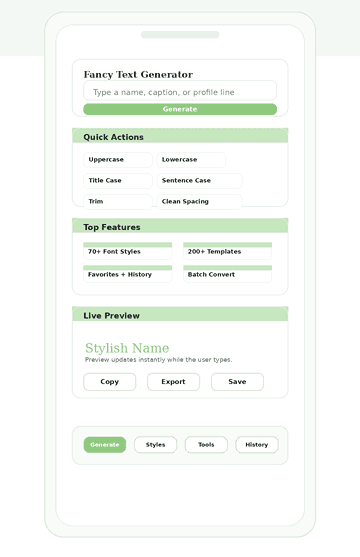
Fancy Text Generator

What the Tool Does

Unicode, Not Images

Fancy Text Generator transforms regular characters into stylish Unicode text that you can copy and paste into most apps and websites. The text remains editable. Copy any style and paste it directly into your bio, caption, or message—no extra steps needed.
 

Designed for Everyday Use

This application works quickly. Type in your word or phrase, immediately see style options, and copy your preferred choice. No setup required. No downloads needed. You can get results fast.
 

More Than a Basic Generator

Other pages display random styles, but this tool provides more options. Try various text styles, see instant changes, compare choices, save favorites, review your history, and use it on your phone without losing clarity. These features make the tool easier to navigate, whether you’re on a phone or desktop.

Visual Evidence

Main Interface Preview
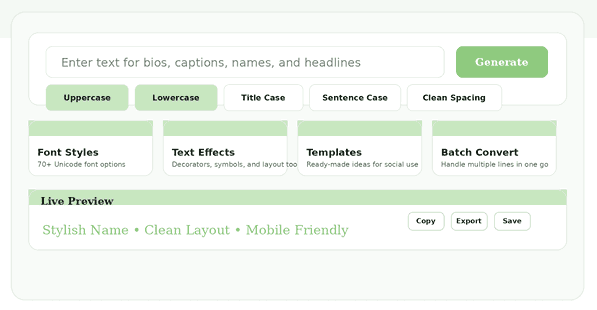
Screenshots let visitors see the tool in action before they try it — the input box, action buttons, and live preview area show exactly how it works.
Main Fancy Text Generator interface with text input, feature cards, and generate button
Figure 1. Interface overview of the Fancy Text Generator tool

Feature Value

Wide Style Range

Variety attracts users to text generators. Most visitors seek options that range from subtle to decorative yet still readable. This tool provides polished, playful, bold, clean, and lightweight styles, allowing one phrase to suit any platform or mood.
 

Fast Live Preview

Live preview offers a major benefit. Users verify readability, spacing, and appearance before copying, ensuring the outcome aligns with expectations. This feature keeps the workflow efficient.
 

Quick Text Actions

Simple actions like uppercase, lowercase, title case, sentence case, and spacing cleanup add value. These controls allow users to quickly format text without leaving the page, making the tool more useful than a basic generator.
 

Organized Feature Cards

Beyond quick actions, structure influences perceived quality. The interface arranges key features into clear cards rather than cluttering them together. This layout allows effortless scanning, keeps the page tidy, and helps mobile users navigate efficiently. Good organization improves usability and encourages stronger engagement.
 

Templates that Reduce Friction

Templates are especially useful when you’re not sure what style fits—just pick one and adjust it. Ready-made examples demonstrate how a display name, a short quote, or a decorative heading can look, helping make the page more welcoming for new users.
 

Compare Before Copying

Finally, the compare view helps you decide by showing different versions side by side. You can choose the one you like best, making selection easier and enhancing your experience with the tool.

Screenshot Of The Function

Feature Cards Overview
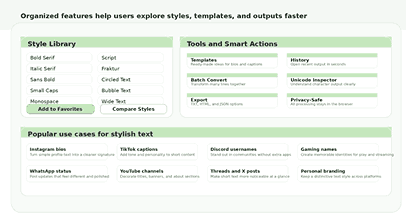
Each section of the tool—font styles, templates, saved settings, and extra tools—is clearly separated so nothing feels crowded.
Fancy Text Generator features including font styles, text effects, templates, and batch convert
Figure 2. Feature cards, templates, and supportive tools shown inside the generator.

Convenience and Trust

History and Saved Picks

Visitors enjoy features that retain their preferences, such as favorites, saved styles, and recent history. These elements provide a consistent, personalized experience every time they come back.
 

Easy Export and Copy

Copying results should be quick and straightforward, enabling users to transfer output effortlessly with well-placed copy and export options. This simplifies the process and encourages users to come back.
 

A Privacy-Friendly Flow

Privacy is more important than ever. People want to know what happens to their data and how long it’s stored. A simple, browser-based process feels safer and easier to understand. Users trust the tool when they can create, review, and copy text without an account or hidden steps.
 

Honest Compatibility

Good content sets clear expectations. Unicode text works in many places, but its appearance can vary depending on the platform, app, or font. Before using it, users should verify if Unicode text displays correctly on their chosen platform, app, or font. Providing this advice upfront helps people decide where their text will work best. Honest guidance allows users to manage expectations and builds trust.

Where People Use It

Social Profiles and Bios

Social media is a primary reason people use stylish text generators. By standing out from default text, many seek unique bios, profile names, and highlighted titles. With a styled phrase, an account can appear distinctive—no graphic design software needed. As a result, tools like these remain popular on platforms such as Instagram, TikTok, and Discord. Beyond social media, stylish text also has value in other online spaces.
 

Gaming and Community Names

Gamers and online communities use stylized text to express their identity in unique ways. By adding flair to a display name, they create something original, branded, and memorable in a chat list. Because readability matters, previewing and comparing styles before choosing is also helpful. This method of personalization also supports branding needs for small businesses.
 

Branding for Small Businesses

Small businesses also benefit from this page. Store owners, coaches, creators, and freelancers use polished text for bios, campaign labels, or branded headings. Try the Personal Branding Calculator to take it further. This tool quickly enhances online presence without extra design costs, though full brand design remains important. Additionally, stylish text is useful beyond branding and identity.
 

Captions, Quotes, and Headings

Many people want a more attractive line for a caption, quote, post heading, or invitation. This tool handles those small but meaningful moments quickly and without fuss.

How It Operates

Simple Three-Step Flow

The process is straightforward. Just type your text into the input box, and you’ll see different styles appear instantly. Browse the options, copy the one you like, and paste it wherever needed. Clear steps make it simple to use and boost your confidence.
 

Why Keeping It Simple Actually Works

The simpler the experience, the longer people stay. When you can go from typing something to copying the result in under ten seconds, the tool does its job — no learning curve, no confusion.
 

Better Than Image-Based Styling

Understand the difference between creating Unicode text and editing images. Styling text as an image turns it into a graphic that cannot be copied as regular text. In contrast, a text styling tool keeps the characters, making it useful for bios, names, captions, and short notes.

Improve your content using this tool

Looking for more free tools? Try the Document Formatter to clean up your text before styling it, or explore everything in the NexezTool Suite.

Mobile Strength

Built for Smaller Screens

Most people initially use text tools on their phones because it’s convenient. A mobile version that is crowded, confusing, or slow can quickly discourage them. This design keeps the main input, action buttons, and feature cards simple to see and tap, making the tool more useful and enjoyable to use. That means people can actually get things done on a small screen, which is usually where they need this tool most.
 

Thumb-Friendly Layout

Mobile optimization extends beyond shrinking desktops. Small-screen design needs clear spacing, legible labels, and accessible controls. Distinct feature cards and a visible copy button create a calm experience—essential, as tool pages must deliver value quickly.
 

Responsive Screenshot

A third image builds trust by demonstrating responsive design in action. A mobile preview shows the layout remains clean, readable, and effective on small screens. This reassures users and reinforces the page’s quality message.
Fancy Text Generator preview section showing stylish text output and clean layout
Figure 3. Mobile-friendly preview showing the responsive tool experience.

Frequently Asked Questions

What can this tool do?

It transforms plain text into previewable, copyable styles and provides tools like case conversion, spacing cleanup, saved styles, history, and more.
 

Who is this tool useful for?

It’s helpful for anyone seeking unique text in bios, names, captions, or creative projects.
 

Can it help with repeated tasks?

Features like saved styles, history, templates, and batch conversion are ideal for managing many names, recurring captions, or maintaining a consistent personal brand style.
 

Why is the preview section important?

The preview section allows you to see the result before copying it. You can review readability, spacing, tone, and appearance all in one place. This helps you avoid rushing into a style and ensures your final choice feels more deliberate.
 

Does the page work well on mobile?

The design remains straightforward, and key actions are simple to locate on mobile.
 

Why do quick actions matter?

Quick actions address common formatting needs in one place, so you don’t need other tools.
 

Can users test more than one style?

Yes. The tool is for experimentation. You can try different styles, review history, compare results side by side, and save favorites. This flexibility helps you choose the best version.
 

Does styled text work on Instagram and TikTok?

Yes, and that’s actually one of the main reasons people use it. Instagram bios, TikTok display names, Twitter/X usernames, Discord nicknames — these platforms all support Unicode characters, which means your styled text shows up exactly the way you copied it. The only place it might not work is inside apps that strip formatting, like some older email clients or plain-text SMS. A quick paste-and-check takes two seconds if you’re unsure.
 

Can the tool handle both short and longer texts?

Yes. The tool works with both short and long texts, providing a clear preview for each.
 

Is the text I create actually a font or something else?

Great question — it’s not a font, even though it looks like one. What you’re getting are Unicode standard characters. Think of it this way: the English alphabet has one version of the letter “A,” but Unicode contains hundreds of symbols that look like an A in different styles. This tool swaps your regular letters for those Unicode look-alikes. That’s why the styled text works when you paste it anywhere — it’s not a font file your device needs to load. It’s just characters, like any other text.
 

Can I use this feature on my phone?

Absolutely. The tool is built for phones from the start—not just “it works on mobile” but is actually designed for phones. The font styles are easy to tap, the copy button is big enough to use with your thumb, and the preview updates as you type. Most people actually use it on their phones because that’s where they need the styled text in the first place—right before posting a bio or writing a caption.
 

Does the tool support both creative and practical use?

Yes. The page accommodates both creative styles and practical formatting in one location.
 

Does this tool store my text anywhere?

No. Everything you type stays in your browser — nothing is sent to any server, no account is needed, and nothing is saved on our end. If you close the tab, it’s gone. The only thing that gets saved locally (on your device) is your favorites and recent history, and that’s stored in your browser’s memory, not ours. You can clear it anytime from the tool itself. For full details, see our Privacy Policy.

How to Use the Fancy Text Generator

  1. Hello and welcome! Just type your text below whenever you’re ready to start.
  2. Next, choose a font style you like, or click Magic Randomizer for a surprise!
  3. Experiment with gradients, shadows, or neon effects, or energize your text with lively emojis!
  4. Watch your new text change as you go, and just copy or download it when you feel ready!

Benefits and Features of the Tool

For Invitations

Presentation is just as important as wording for invitation titles, event names, menu labels, and lines. Fancy Text Generator allows you to quickly experiment with styles without switching applications. Users can generate ideas, compare options, and swiftly select the best version. For casual projects and personal events, this speed saves effort while ensuring polished results. Just as appearance matters for invitations, so too can streamlined tools enhance daily text tasks.
 

For Daily Use

This page helps all users, whether content creators, students, freelancers, or anyone aiming to make their text stand out. The simple design encourages experimentation and creative reformatting, making it straightforward to improve your work’s appearance. No special skills are required to use this tool. Beyond standing out, clarity is important for all formats.
 

Readable Output

Styled text should be easy to read. A good generator remains creative yet clear for bios, captions, and names. If the text looks stylish but is difficult to read, people will stop using it. Readability is a main reason why people trust these tools.
 

Clean Formatting

Formatting is important because copied text should look good and paste easily, without awkward spacing or issues. Cleanup tools and reliable previews enhance the tool’s trustworthiness and encourage repeated use. Ensuring the tool remains accessible is equally vital for new users.
 

Beginner-Friendly

Users generally visit here with one goal: to enhance the appearance of a line of text. The page is simple from the beginning, with clear controls. If you want more, you can explore extra styles, save your work, check history, compare, or process batches. This balance stays straightforward but offers plenty of options for more advanced users. This ease of use is also useful when integrating the tool into any workflow.
 

Workflow Value

A powerful tool saves time with swift results and fewer options. A clear page allows you to go from input to outcome without navigating menus. This smooth workflow encourages reuse. Consistency in design also supports this seamless experience.
 

Consistent Design

Matched input boxes, cards, tabs, buttons, and previews create a complete feeling for the tool. A consistent design is easier to trust and helps users find what they need quickly. This overall simplicity and coherence make the tool genuinely practical for everyone.
 

Real Convenience

Convenience is crucial. Users favor clear buttons, easy-to-read sections, and generous space. When actions operate smoothly, people attempt more features and complete tasks more easily.

Tips to Enhance the Style of Your Text

  • Why not try mixing fonts to give your work a special flair?
  • Consider adding a gradient to your text to really make it pop!
  • Emojis are a lively way to highlight your message and show some personality!
  • Batch-generation tools can quickly help you create great captions or bios!
  • First, add a shadow around your text. Next, apply a glow effect. Adjust their intensities to achieve a 3D or neon appearance.

Why It Stands Out

The fancy text generator is straightforward to use immediately, but as you become more familiar with it, more advanced features become available.

With the ability to quickly change text case, modify styling, use different workflows, save your work, and utilize useful utilities and a simple review area, it caters to both quick edits and regular, stylized text creation.

Final Impression

A good fancy text generator instantly transforms plain text into eye-catching designs. You can quickly get started with user-friendly formatting tools, feature cards, and a visual preview.

The interface works smoothly on both desktop and mobile, allowing you to style text wherever you are. Its design enables you to generate attractive text rapidly, copy, save, or compare results, then use them wherever you post or share.

Scroll to Top