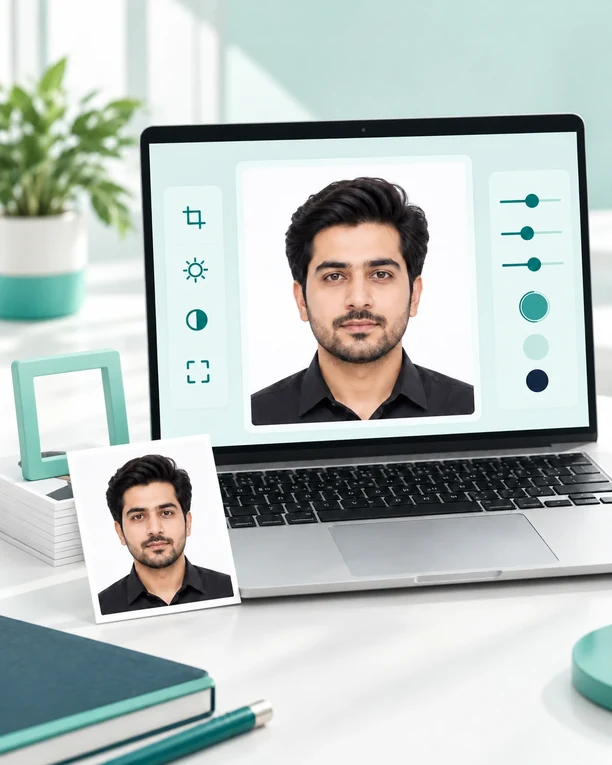
Passport-Size Photo Maker Pakistan Online
Browser-based photo maker
Passport-Size Photo Maker Pakistan
Photo Preset
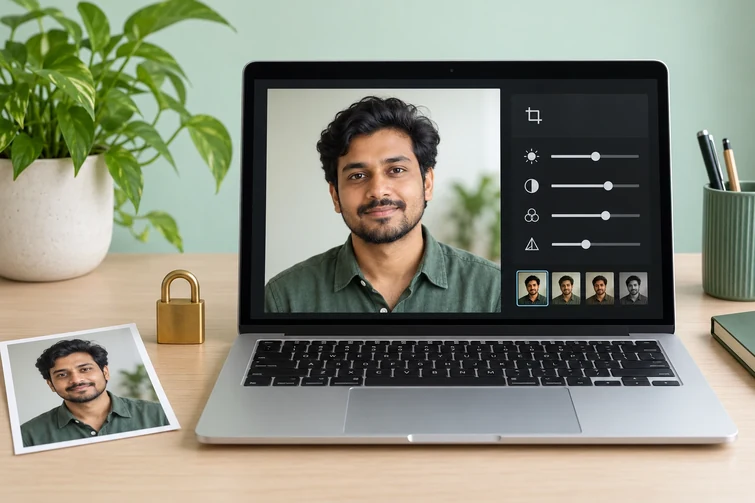
Crop & Face Alignment
413 x 531 pxDrag the photo inside the crop area. The guide is visual only and does not guarantee official approval.
Background Tool
For best results, upload a photo taken against a plain wall or simple background.
Plain background replacement works best on simple backgrounds. For complex backgrounds, use the manual cleanup brush.
Photo Adjustment
Live Preview
Compression
Print Sheet
Download
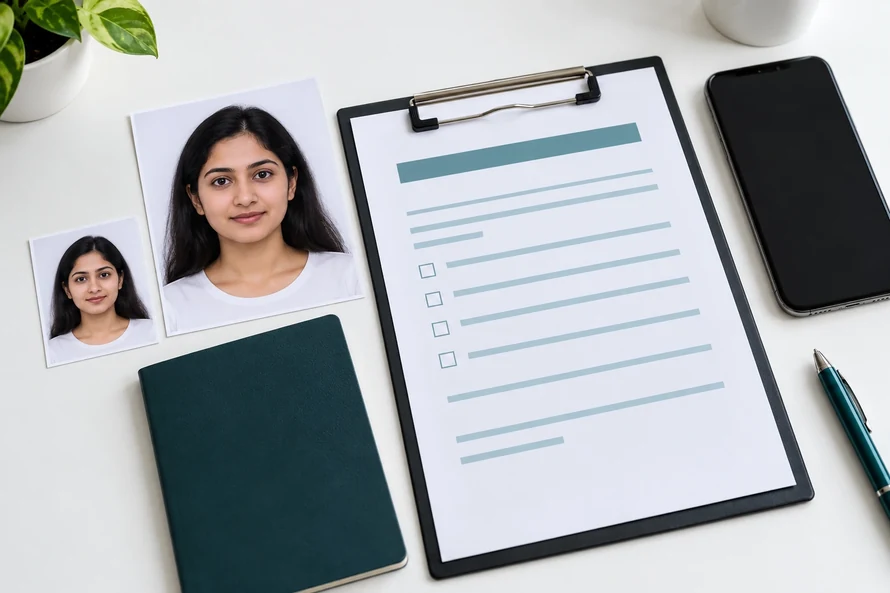
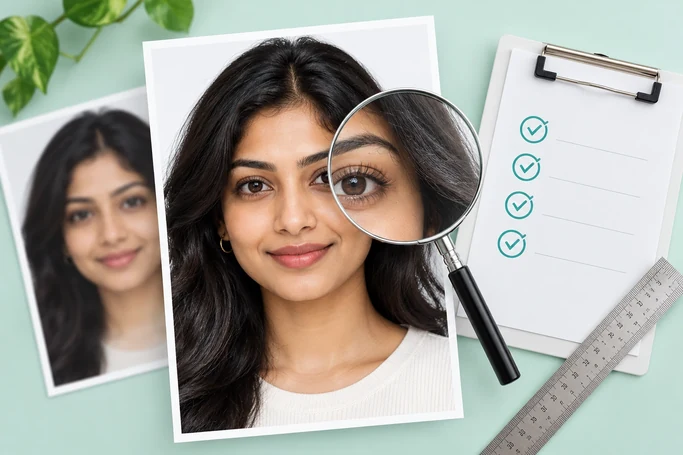
Photo Compliance Checklist
- Plain white background recommended
- Face clearly visible
- Eyes open
- No sunglasses
- No heavy shadows
- No blurry photo
- Head centered
- Shoulders visible
- Good lighting
- Recent photo recommended
- Use neutral facial expression
- Avoid caps or face-covering items unless required for religious or medical reasons
This tool helps you prepare a passport-style photo, but it does not guarantee approval by any government department or official service.
Passport-Size Photo Maker Pakistan Online

Create a 35x45 mm photo, ready in minutes
Do you need a passport-style photo for a Pakistani form? This Pakistan online passport-size photo maker allows you to crop, resize, adjust, compress, and download your photo without installing heavy software. This tool helps you to prepare a clean 35×45 mm photo for your passport, visa, NADRA, CNIC, NICOP, school, job, and other application needs.
Add a photo, select a preset, align your face, choose a background, and export the final file. Everything is done in your browser, so it feels fast and private. You control the crop, the background, the quality, and the format for the download.
This tool does not replace instructions provided by the form or department. But it makes the photo prep step easier, cleaner, and more accurate. Your last photo should always be precisely what is required on your application portal.
Why this tool helps Pakistani users
Easy Passport Photo Maker Version
“Lots of people just want a studio to do one little photo. Others lose quality by reframing images in random apps. This online passport-size photo maker in Pakistan provides you with a simple workflow for common Pakistani document photo sizes.
Editing Features For Everyone
It supports uploads of JPG, JPEG, PNG, and WebP. It also has presets for Pakistan, custom sizes, DPI conversion, manual crop controls, background color options, image adjustment, compression, and printable photo sheets. So you can create digital files and print-ready layouts all in one place.
Flexible Export Options
If you need a passport-size image for an online form, you can export it as a single .jpg or .png file. You can create a 4×6 or A4 photo sheet if you would like more than one copy. It saves your time, and you do not have to do the same edit again and again.
Simple Passport Photo Maker Online Pakistan
This online passport photo maker in Pakistan is the simplest way to get a lovely passport-size photo of 35×45 mm. Photos for online forms, printing, school records, job applications, IDs, Crop Background Quality
What Is a Passport-Size Photo Maker in Pakistan Online?
Official Tool Style Pictures Online
Passport-size photo maker Pakistan online is a web tool that formats your portrait into a document-style photo. It crops your face inside a normal frame and resizes the image; it changes the background color and prepares a downloadable file.
This tool is meant for Pakistani use cases. It has presets for Pakistan passports, visas, NADRA, CNIC, NICOP, Job applications, school forms, and custom dimensions. You choose the size for your body type, and then you modify the result.
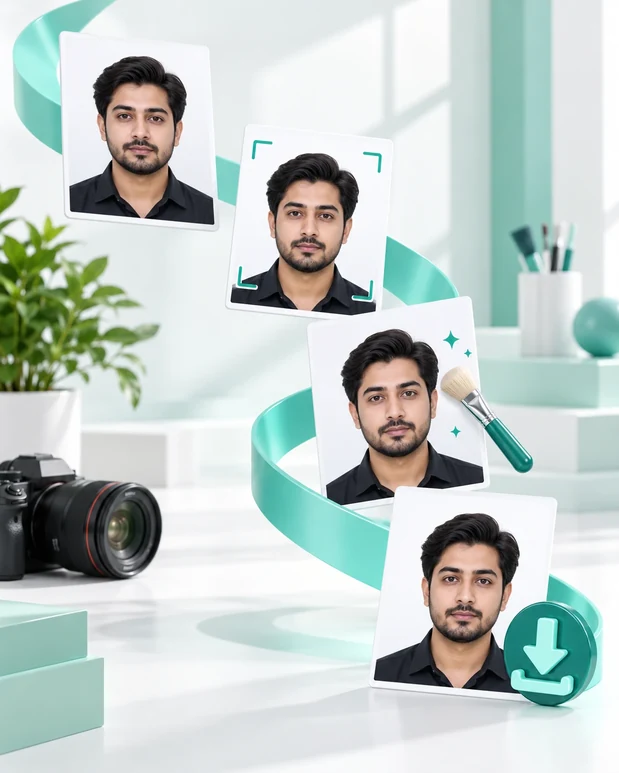
No Photoshop or fancy editing skills needed. Instead, you get clear steps: upload, crop, background, adjust, preview, compress, and download.
Easy Manual Resize
If you do it manually, the images often come out blurry or stretched. It may also mess up the position of the face and ruin the photo ratio. A dedicated tool helps avoid these common mistakes by keeping control of the selected preset and aspect ratio.
For example, a portrait size is for a photo of 35mm x 45mm. Resizing without proper cropping can make the face too small, too big, or not in the center. This tool lets you zoom, drag, rotate, nudge, and align your photo prior to exporting it.
So you can take a cleaner photo and check the preview before downloading. That extra control is critical for a format with demanding photo requirements.
Pakistan Passport Photo Size and Common Requirements

Use the 35mm x 45mm preset when required
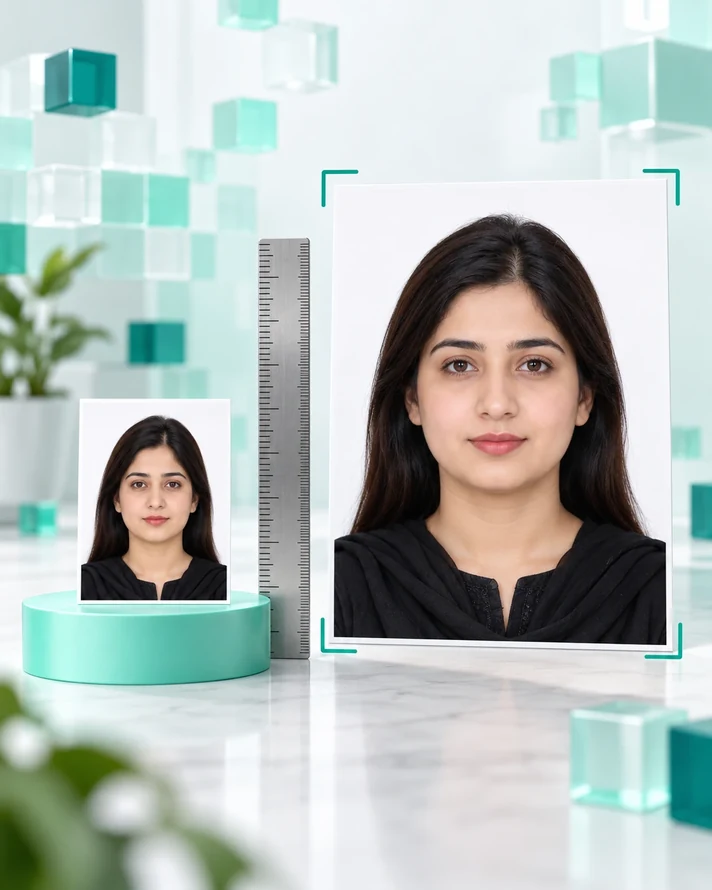
The most common size for a Pakistan passport photo is 35mm x 45mm. This size is also used in many visa, NADRA, CNIC, NICOP, school, and job applications. This preset is part of the tool so you can jump straight into it with the right frame.
Example: 35mm x 45mm at 300 DPI is about 413 x 531 pixels. 600 DPI is approximately 827 x 1063 pixels. Different forms will require different pixel sizes, so please follow the instructions on the specific form as they arise.
The Tool has DPI options and displays the output details. So you know the physical size, pixel size, ratio, and background before downloading the final image.
Keep your face clean and straight
A good passport-style photo shows your face clearly. Keep your head straight, look at the camera, and do not tilt your shoulders. Leave room around the head so the crop does not cut off hair, chin, ears, or shoulders.
Use even light and avoid hard shadows. Use a simple background best; cleanup tools work better on simple backgrounds. Furthermore, stay away from sunglasses, dark filters, blurry selfies, and busy backgrounds.
Follow the specific instructions for your form for head size, background color, file size, or pixel size if they are specified: While this tool is a great preparation aid, final approval is always the responsibility of the receiving office/portal.
NADRA, CNIC, NICOP, Visa, Job, and School Photo Uses
Upload one document photo, then make a number of copies
In Pakistan, people usually want the same portrait in different sizes. One could require a passport-type photo, another a CNIC type photo, and a job portal may want a small JPG with a hard limit on file size.
This online passport-size photo maker in Pakistan meets the daily needs. Select one clean image and generate several outputs. Pick NADRA, CNIC, NICOP, Passport, Visa, Job, School or custom size presets as required.
It’s also enjoyable when a form asks for a unique size. The tool provides controls for custom width, height, unit, and DPI. You can enter dimensions in mm, cm, inches, or pixels, and then export a clean file.
Match the background to the required form
Document photos generally need a plain white or light background. Some varieties are soft gray, pale blue, or off-white. The tool has quick background presets such as white, off-white, light blue, NADRA light blue, visa blue, gray, ivory, mint, and custom color.
Find the safest background for your specific type. If the form says white, use white. If it says to use a light blue background, select the corresponding blue preset. No fancy backgrounds, patterns, outdoor scenes, or shadows behind your head.
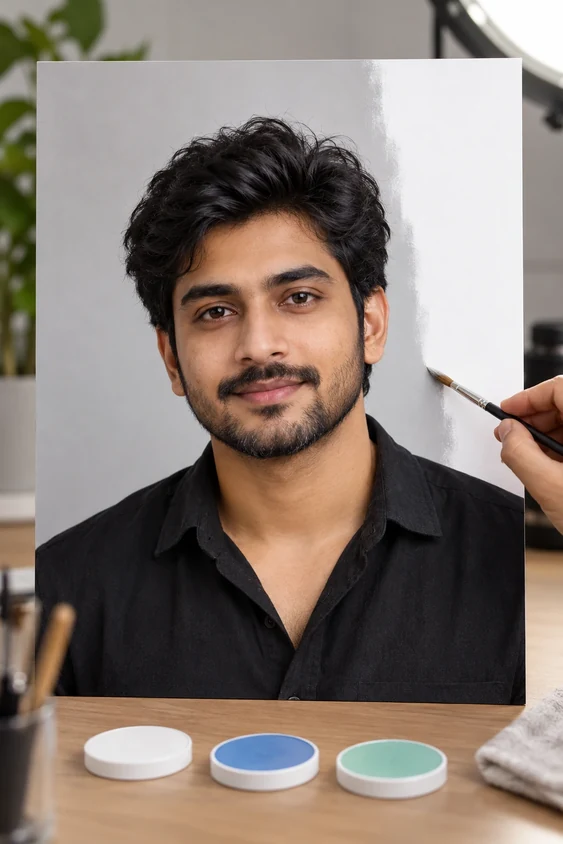
The tool has a manual cleanup brush and a simple color threshold helper for plain backgrounds. Be cautious with these controls, especially for hair, ears, and shoulders. Natural edges are better than sharp cut-outs.
Tips for Uploading Online Form for Pakistani Users
Choose The Right File Type
The majority of online forms accept JPG or JPEG since they keep the file small and upload quickly. PNG files can have better quality, but they result in larger file sizes. Choose the format your form will support.
Keep it within file-size limits
Plenty of portals have a file size limit (KB/MB). If your photo is too big, please resize it before uploading. Be sure to compress the file carefully so the face still looks sharp and natural.
Avoid blurry or over-edited images
“Natural photos always do better, not edited ones.” Forget the beauty filters—the oversharpening, the overbrightening. The face should be natural, the background plain, the image clear. You can also read up on the basic rules for digital passport photos to get a sense of the background, lighting, face position, and image clarity.
Review Before Submission
Please download and open the image before uploading it. Look at the crop, the position of the face, the background, the size, and the file format. This quick preview can save you the whole editing process.
Pakistan Visa Photo Specifications: What to Look for Before Uploading
Pakistan Visa Photo Requirements
Upload a clear photo taken in natural light, with a plain background and the correct size for a document photo. Hold on! Make sure the picture is right. No one likes to make a mistake and then have to go back and fix it.
Pakistan Passport Photo Pixel Size Guide
Photo 35×45 mm in pixels
A 35×45 mm photo is a physical size, but online forms are asking for pixels. This is why DPI is important. By selecting 300 DPI, the tool converts the size into a sharp digital image suitable for most online and print applications.
Why DPI is Important
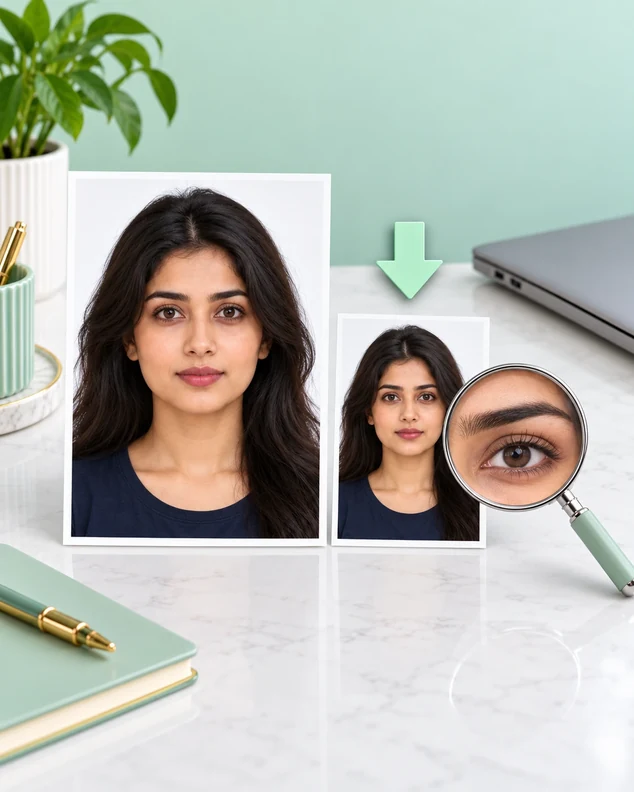
DPI (dots per inch) specifies how sharp your photo will look in print. Low-DPI image may appear soft/blurry on paper. The high-dpi image is of better quality, especially around the eyes and the edges of the hair and face.
Recommended DPI for Print and Online
Most passport-style photos are 300 DPI. It produces a well-balanced image, with excellent clarity and a manageable file size. Only use 600 DPI if you require better print quality or the form mandates it.
Download Check
Always check final pixel size, physical size, and file format before downloading. This little check will save you from stretched photos, wrong dimensions, and rejected uploads.
Who Can Use This Online Photo Maker?
Job Seekers’ and Students’ Photo Solutions
Students can prepare the photos for admission forms, exam forms, and school and college records. Job seekers can have a professional photo taken for their resumes, online job portals, and employment forms. Job seekers can also prepare a simple cover note with our application letter generator.
How to Take Passport and Visa Photos for Travelers
Travelers can create passport-style or visa-style photos if a form necessitates a digital photo. And families can also make some photocopies of documents without going to a studio for every tiny change.
The tool is beneficial for day-to-day Pakistani documentation needs, as it provides common presets and printable formats.
Website owners and service providers
Website owners and service providers in Pakistan can provide a boost to your on-page SEO in the vicinity of your tool’s website. The focus keyword is for those who are looking for an online photo solution for the specific needs of Pakistan.
Privacy. Tips & Questions Features: step-by-step Applications. It also includes the related terms like “Pakistan passport photo size,” “NADRA CNIC photo size,” “35×45 mm photo,” and “printable passport photo sheet.”
Meta CTR Booster is a tool for website owners to write better meta titles and descriptions for tool pages.
How to Use Passport-Size Photo Maker Pakistan Online
Step 1: Upload a cool pic
Start with a recent lovely, light portrait. Picture your full face, front-on. The supported formats are JPG, JPEG, PNG, or WebP, up to the specified limit.
It shows the file details, like the file name, size, original width, and original height. This way you can check the quality of your source photo before editing.
For best results, pick a photo with a plain wall behind you. Say no to group shots, screenshots, filtered social media photos, and low-light selfies.
Step 2. Select the correct preset
Then select the preset that suits you. Select Pakistan Passport/Visa for a 35 mm x 45 mm output. NADRA/CNICOP : Select this option if your identity document form requires it.
Also choose Job Application, School Form, or Custom Size. In the custom option, you can enter width, height, unit, and DPI. That makes the tool handy for portals that offer exact pixel or physical dimensions.
See the details of tool output before proceeding. Please confirm the background, pixel size, physical size, ratio, and DPI you selected.
Step 3: Crop and straighten your face
Now cut out the picture inside the border. Drag, zoom, fine position sliders, fine rotation, nudge, fit photo, fill frame, rotate, flip, center, reset, and guide overlay controls.
Easy: keep face centered, straight, and in sight. Natural eyes. No head tilt. Shoulders level. If the face looks too close or too far away, use the zoom and position controls.
The guide overlay helps position the face. But don’t over-edit. A normal passport photo is usually better than an overly retouched one.
Step 4: Define/clear the background
Cut it and choose the background color. Some identity-photo uses might be acceptable with light blue, and white is suitable for many forms. If the form produces a strict color, then use that color.
Only use the plain background replacement helper if the original background is simple. Use the manual clean-up brush if the background is complicated. Adjusts the size/softness of the brush for cleaner edges.
The focus is less on the hair and shoulders. Rough background edits create halos, jagged edges, and unnatural outlines. Pick a simple clean background to make the final picture more professional.
Step 5: Adjust Brightness/Contrast
Nice photo; the light is balanced. Controls for brightness, contrast, saturation, exposure, and sharpness enhance clarity. Try local auto-enhance if the image looks flat.
Make the changes believable. Don’t make the face too bright, or you’ll lose the detail of the skin. (Do not apply heavy saturation or filters. Official-style photos should be neutral, natural, and clean.
Review the before-and-after results. If the photo looks too artificial, reduce the adjustment and keep the original look more natural.
Step 6: Compress and Download
Some online forms do not accept large files. The JPG feature compresses a file if you need a small-size image (in KB). You can test the compression before downloading it.
Luckily, the form comes with a built-in option to upload images. Take a JPG (or PNG) for a clear image or a useful preview. If the portal has a file size limit, use a zip file; An image compressor can be used to reduce the size of the image file if it is too large to be uploaded on an online form.
Open file and download. sharpness check, cropping, background, and final dimensions. This quick review should help you avoid uploading the wrong image.
Download Individual Photos & Printable Sheets

Export JPG, PNG, compressed photos, 4×6 sheets, A4 sheets
This online passport-size photo maker in Pakistan offers you various output options. You can download one JPG, one PNG, one compressed JPG, one 4×6 photo sheet, or one A4 printable sheet.
The one photo is more appropriate for online applications. This compressed photo is useful when a portal limits the size of uploads. The 4×6 and A4 sheets are handy if you want to print out lots of copies.
For printing, use a high-quality source image and appropriate DPI. Print the sheet without stretching, fitting, or cropping it incorrectly in the printer.
Multiple Copy Printable Sheets
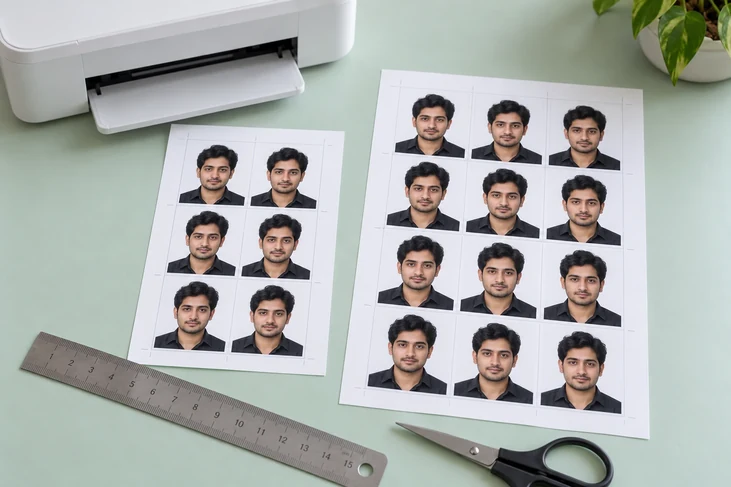
You can print several copies on one sheet. It is suitable for passport photos, school forms, job forms, and general document submissions. You can either bring the finished sheet to a print shop or print it yourself at home.
Pre-flight sheet spacing, borders, and cutlines before download. “Cut lines make for clean cuts on photos and separate borders. If your form does not have borders, cut them out after printing.
If precision is important, always measure the printed photo with a ruler. The digital file is correct. But the printer settings can change the size of the final physical product. If you are looking to handle your printable photo sheet like a document, you might look into PDF Suite Online for simple PDF tasks.
Printable Photo Sheet vs Digital Photo
When to Use a Digital Photo Image
If you need to upload a photo to an online form, please provide one digital photo. This option is a great alternative for job portals, school forms, visa forms, and identity-document applications with image upload.
How to Use a Printable Sheet
Printable sheet if you need multiple hard copies. You can print several copies simultaneously on a 4×6 or A4 sheet. It saves you time and reduces the amount of editing you have to do over and over again.
Stretch-Free Printing
When printing, avoid using “fit to page” if it alters the size. “Make sure to print the sheet to the correct scale. Even with a perfect digital file, wrong printer settings can alter the final physical size.
Final print measurement
Print a photo and then measure it with a ruler. Be sure the size, width, and height are correct. Last checked documents include the passport, CNIC, NICOP, school documents, and job documents. Furthermore, if you often prepare documents, sheets, or files of online forms, you can verify more image and PDF tools.
Tips To Avoid Rejected Passport Photos
Begin with a better original photo
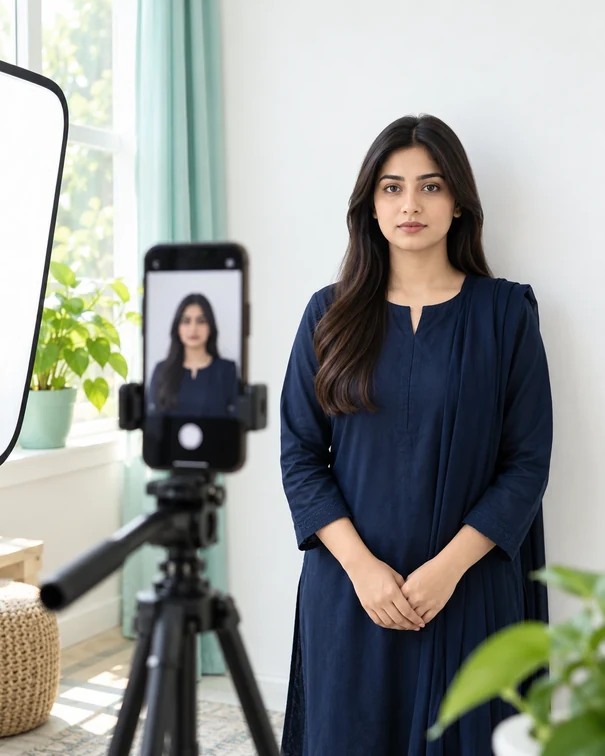
Good original = excellent final picture. Face the camera and stand in front of a plain wall in natural light or soft indoor light. “Don’t throw shadows on your face. Hold the phone steady.
Don’t exclude yourself from a group photo. No mirror selfies. Please do not upload a low-resolution screenshot. These shortcuts usually produce blur, incorrect angles, and weak details.
Tell them to shoot at eye level. This simple step helps improve facial alignment and reduce distortions.
The expression should be natural
Maintain a closed mouth and a neutral expression. Look through the lens. Keep your smile minimal, avoid raising your eyebrows, and stay still. Watch both of them.
Take off sunglasses, hats, and anything that covers the face unless your form specifically allows for an exception in this area. Tuck the hair away from your face so you can see it.
The picture should be a clear image of you. A natural, clean image is usually better than an edited one.
Don’t use heavy filters or beauty edits
Filters can change the skin tone, blur the facial features, and reduce the details. Beauty edits can make the photo look unnatural, too. For official-style photos, you need a lot of natural texture, clear eyes, and a defined face shape.
Do not change brightness, contrast, exposure, saturation, and sharpness except for minor adjustments. If the image looks touched up, undo it and make adjustments carefully.
The idea is not to do a social media portrait. You should aim for a satisfactory look at the document.
Please verify the file size before uploading it
Online portals typically have upload limits. Use the compression option if your image is larger than that limit. Try mild compression for a smaller size at the expense of some quality.
Open the compressed image and zoom in. If the face looks blocky or blurry, try reducing the compression or use a better source photo.
Even a small file should still look appealing. Finally, before you submit it, please ensure that there is a good balance between the file size and the image clarity.
Frequently Asked Questions
What is the Passport Photo Size in Pakistan?
The passport photo size in Pakistan is 35mm X 45mm. This style is used in many passport, visa, NADRA, CNIC, NICOP, job, and school forms. But always use the size indicated on your application form.
Can I take a Pakistan passport photo online?
Yep. Online in Pakistan, you can use this passport-size photo maker to upload a portrait, select the 35×45 mm preset, crop the face, choose a background, set the quality, and download the final photo.
Can I use this tool for NADRA, CNIC, or NICOP photos?
Yeah. Default for NADRA/CNIC/NICOP. Can generate output in a size of 35mm x 45mm. Compare the final image with the instructions shown on your NADRA or identity-document form before submitting.
Does the tool upload my picture to a server?
Nope. My training is current up to October 2023. Photo editing is done in a browser using Javascript Canvas. This tool requires no upload to the server, no database storage, no external AI APIs, no OCR APIs, and no paid background removal services.
Which file formats does the tool support?
It supports JPEG, PNG and WebP uploads. You may want to download jpegs , pngs , compressed jpegs , printable 4×6 or A4 photo sheets.
How do I resize a passport photo for an online application?
Yep. If you have a KB limit on an online form, use the compress feature. Before uploading, preview the compressed image to make sure the face is sharp and clear.
Can I print more than one passport-size photo on a page?
Yes. Create printable photo sheets (4×6 or A4). These layouts are printable in copies and cuttable for documentation purposes.
Is this tool going to make sure my photo is approved?
No. It helps to have a clean, document-style photo, but it’s not a guarantee of approval. Check the latest requirements with the department, embassy, school, employer, or application portal before you apply.
What is the background for a passport picture?
Use the background you already set for your form. If there are no other colors involved, white is usually the safest choice. *If your form is light blue or some other color, select that preset or custom color.
Why should I use this tool instead of a simple image resizer?
A resizer only resizes. It also has crop alignment tools, background color, image adjustments, compression, printable sheets and Pakistan specific presets. This is more suitable for passport picture.
Why Use Random Resizers Instead of This Tool?
The Drawbacks of Regular Image Resizers
The usual image resizer will change the height and width. It may not be useful for face alignment, background color, sheets for printing, or kb compression. A passport-centric tool will solve these practicalities in a single workflow.
Passport Photo Maker Features
This online passport-size photo maker in Pakistan keeps the preset ratio, shows output details, and provides controls that matter for document photos. Crop the face and clean up the background. Adjust the image. Compress the file. Export print layouts.
Benefits of Saving Time
That focus saves time. It also reduces the errors that can happen when using the same photo in several apps.
Limitations of One-Click Tools
One-click tools can be quick, but they can cut the face in the wrong place or make weird edges around the background. This tool allows you to fix the result manually before downloading.
Manual Adjustment Features
Fine-tune the photo with zoom, position, rotation, nudge, guide overlay, and background brush. And then check the final result and download the format you want.
Benefits of Greater Control
Better control generally means a better final image. It’s also beneficial if there are specific instructions on a form.
Common Mistakes That Can Wreck a Passport Photo
Self-Portraits (cropped)
The selfie may look excellent on a phone, but it can sometimes produce wrong angles and face distortion. For better results, use a front-facing portrait taken at a normal distance.
Selecting a Busy Background
The background must not have any objects, shadows, or any kind of pattern because that makes the photo look unprofessional. Use a plain background or select a clean background color in the tool.
Making the face too big
Don’t zoom in too much. Give lots of room around the head and shoulders. A successful crop makes the photo look cleaner and more acceptable in a document style.
Over-compressing an image
While you compress too much, the face may look chunky or blurry. Make the file size as small as you can. The last image should be clear after compression.
Form Not Followed Instructions
Each portal can have its own rules. Always use the photo size, background color, file type, and file size listed on your form. The tool helps you prepare the photo, but the last requirement comes from the application portal.
Final Checklist Before You Download
Verify the Size
Verify the Size to ensure you have selected the correct preset or custom size. Many Pakistani document photos are 35×45 mm, but your form may require a different size.
Look at the Face Position
Your face should be centered, straight, and in focus. The crop shouldn’t take your hair, chin, ears, or shoulders off in an unnatural way.
Background Review
Provide a plain background that meets your form requirement. In some cases, white, light blue, or off-white may be acceptable, but the safest choice is to use the color specified on your form.
Check file format
Here you can download a JPG, a PNG, a compressed JPG, a 4×6 sheet, or an A4 sheet, depending on your needs. JPG is typically the most practical option for online forms.
Make a Backup Copy
Retain one original edited copy on your device. If another form later wants the same photo, you can resize or compress it again without starting over.
Check Official Visa Photo Guidelines Before Final Submission
Confirm official DGIP visa info (preferably for visa purposes) before final submission. This tool helps you to obtain a clean photo, but the final photo requirements are always at the discretion of the department, embassy, or online application portal. If your content has any robotic or unclear wording, use TextRefine to make it flow more naturally.