Excel Formula Breakdown Tool

Logical breakdown AI-free analysis Mobile optimized
Recent formulas
Saved formulas

Concise Explanation of Excel Formulas

Use the Excel Formula Breakdown Tool to figure out complicated Excel formulas quickly. You can get a clear, useful explanation of any long formula by pasting it into the tool, just as you would for personalized workbook advice.
 
This solution is made for real Excel work, unlike many other tools. It goes beyond vague guesses by breaking down the structure of a formula, identifying its functions, tracking its references, detecting errors, and displaying results on both desktop and mobile devices.
 
This combination of features is useful for quickly checking things, creating reports, building financial models, generating operations sheets, and cleaning up old workbooks. The goal is to make it clear what a formula does, how it works, and what to do if it doesn’t work.
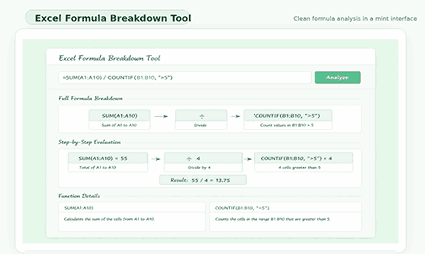
Excel Formula Breakdown Tool interface with formula input, analyze button, and clear step-by-step explanation panels
Figure 1. Main analysis workspace with formula input, structured breakdown, logic flow, and action buttons.

Understand Formulas Faster

A simpler starting point

Before they start, many spreadsheet users waste time. At first glance, a nested formula might seem easy, but it gets complicated quickly when it uses conditions, ranges, lookups, and operators. This tool makes it easier to understand complicated formulas by breaking them down into simple steps. This saves you time and reduces your frustration.
 
This is important. Most formula errors happen because people are confused, not because there are problems with Excel. Users frequently lack understanding of the initial execution sequence, the referenced range, or the rationale for a condition’s impact on the outcome. Formulas are easier to understand and work with when they have a clear structure.
 

Clear reading instead of guesswork

The tool makes it easy for users to read formulas clearly. Users benefit from seeing the formula, the functions it uses, the references it relies on, and the reasoning behind it. This makes it easier for users to quickly review and understand formulas, which feels more like following a workflow than trying to figure out complicated code.
 
This is very helpful when functions are nested. For example, a workbook might do a lookup, add a condition, and use a fallback. If there isn’t a clear breakdown, users may feel overwhelmed. A well-organized layout makes it easy for users to review each part, identify mistakes, and fix them.

What Excel Formula Breakout Tool Actually Does

Paste a formula and review it.

To run the analysis, copy and paste your formula into the main field. The tool cleans up the expression, checks its start, gets ready for review, and shows the results.
 
It’s easy to get started. A good spreadsheet tool has a clean input area, a clear study button, and easy-to-find copy and clear options to keep things simple and on track.
 

Simplify complex logic into clear steps.
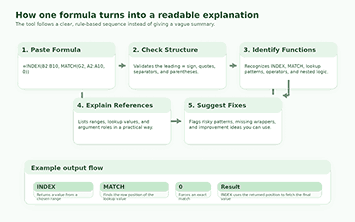
Once your formula is approved, the tool breaks it down into an overview, a step-by-step guide, detected functions, references, and useful fixes. Each view is designed for users who want either a summary or more in-depth information.
 
This setup is better than a lot of text. Some people like a summary, while others look over the risks or arguments. Everyone can find answers quickly with tabs.
Excel formula workflow showing how a formula is parsed into functions, logic, references, and final output
Figure 2. The tool turns one formula into a readable sequence that users can follow step by step.

Structured Breakdown That Follows the Formula

Function detection with plain descriptions

One of the best things about the tool is that it can find Excel functions and explain them in simple terms. It goes beyond just listing the functions’ names by providing short descriptions of what each one does and why it’s in the expression.
 
This feature is very useful in workbooks that have math, text, logical, and lookup functions all in one. For instance, someone might know IF but not be sure about INDEX, XMATCH, TEXTJOIN, or IFNA. The explanations help you understand and remember formulas better.
 

Reference extraction that shows dependencies

Cell references show how a formula works. Even if the logic is right, the results can be wrong if the range or lookup value points to the wrong column or if the reference is too wide. The tool highlights these links so you can find them easily.
 
Clearly listed references show where a formula gets its information. This makes it easier to audit, hand over, fix problems, and clean up workbooks. It also makes teamwork easier because anyone can follow the formula without having to trace each reference by hand.

Built-In Checks That Catch Common Problems

Formatting and syntax checks

The Excel Formula Breakdown Tool finds common structural problems that often get in the way of working with spreadsheets. It can find an equals sign that is missing at the beginning, parentheses that are not balanced, quotation marks that don’t match, and empty arguments that are caused by repeated separators or incomplete function entries.

These checks are important because small syntax issues often cause significant confusion. A formula can break before the user even gets the basic idea. The tool helps users address the visible structure first, then the deeper formula behavior, with less frustration by bringing these issues to their attention early on.

Practical warnings for real workbooks

The analysis goes beyond mere syntax. It also shows deeper patterns that make it harder to keep formulas up to date. Too many levels of nesting, hard-coded numbers scattered throughout the expression, volatile functions that recalculate frequently, and wide references that might slow down big workbooks are all examples.

Those warnings are useful because they show how the formula affects the workbook’s long-term quality. A formula might still work, but it could be hard to change or risky to use again. The tool helps users improve stability by identifying these patterns early, rather than just fixing a visible error on one sheet.
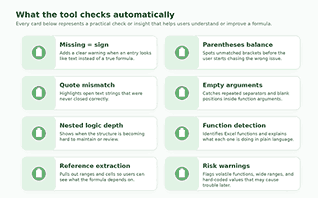
Excel Formula Breakdown Tool features for formula checks, function details, reference tracking, and error review
Figure 3. Key checks and insights that help users review logic, structure, and workbook risk.

Excel Formula Breakup Tool: User Interface

Quick overview for fast review

The overview panel tells you whether the formula is ready or needs to be reviewed again and explains how it works. This helps team members, managers, and reviewers make decisions quickly.
 
This section explains the formula’s purpose, identifies potential issues, and lists risks for further review to put managers, reviewers, and team members at ease.
 

Steps, functions, references, and fixes

Advanced users can see separate panels for steps, functions, references, and fixes. This makes it easier to find information and control analysis.
 
Dividing panels show how the formula is put together, what it does, which ranges it covers, and suggested fixes. This is clearer than a long explanation.

Everyday Features That Make the Tool Usable

Example formulas and optional context

Useful tools should help people get started quickly. This is important when someone wants to try the interface or revisit familiar patterns. Built-in example formulas make this easy. Users can load a sample like IF with AND, SUM with COUNTIF, INDEX with MATCH, or XLOOKUP and see the breakdown right away.
 
Alongside built-in examples, the optional context field adds another layer of detail. Excel lets users add a short error code, note sample values, or briefly describe what’s wrong. With this information, the tool gives more specific tips while keeping the main formula input clean.
 

History, saved formulas, copy, and clear.

Everyday usability depends on small things that reduce repetition. Copy and clear buttons are near the input area. There is also a separate area for recent and saved formulas. These features help users return to previous tests without retyping or pasting the same words.
 
This is very useful for work in support, reporting, and revision. A user can compare formulas, then return to the first one. That cycle is easier with a saved list. Shared patterns help teams work with the same spreadsheet formulas over time.

Useful for Analysts, Finance Teams, and Students

For workbooks you inherit

Spreadsheets from others can be hard to trust. The formulas seem fine, but the creator is gone, there are no comments, and references span several sheets. In this case, a breakdown tool is more than a nice-to-have. It becomes key to regaining trust.
 
Users can view one formula at a time in a clean UI, not hunting through sheets. This reduces risk during migration, handoff, and cleanup. It also helps teams informally track their logic while reviewing old models or files.
 

For learning and handoff

The Excel Formula Breakdown Tool is good for learning. Students, junior analysts, and new members know spreadsheet basics but get lost with nested or mixed functions. A clear breakdown links what they see to the logic they need.
 
That clarity helps with handoffs. When coworkers trade sheets, the next person needs more than a result. They need a background. A breakdown view makes transfer easier by showing how the formula works and what each part does.

Formula Types the Tool Handles Well

Logical formulas

Dashboards, eligibility checks, status models, compliance sheets, and score-based outcomes all rely heavily on logical formulas. Functions such as IF, IFS, AND, OR, and NOT are powerful, but combining multiple conditions in a single expression can make them hard to read. This tool clarifies complex rules for easier comprehension.
 
This enhanced clarity, supported by logical rules, also helps users manage complex workbooks efficiently. The same approach applies to other formula categories, such as lookups, counts, totals, and text manipulation.
 

Lookups, counts, totals, and text formulas

The Excel Formula Breakdown Tool supports both modern and classic lookup patterns. It simplifies reading functions such as XLOOKUP, VLOOKUP, INDEX, MATCH, and XMATCH, allowing users to double-check lookup values, array references, return areas, and match behavior without having to inspect each comma.
 
Beyond lookups, the tool aids with totals, counts, averages, text joins, formatting formulas, and text extraction. Functions like SUM, COUNTIF, SUMIFS, TEXT, CONCAT, LEFT, RIGHT, MID, LEN, and TRIM are easier to explain when separated into distinct roles rather than presented as a block.

Why a Rule-Based Engine Matters

Consistent output every time

One of the best things about this tool is its reliability. The analysis uses fixed logic and never changes its explanation of a formula. Consistency matters when users compare formulas, check versions, or use outputs repeatedly.
 
A stable method is good for teams. When one person looks at a formula today, and another person looks at it tomorrow, they see the same structure and warnings. Because the tool can be used again, it is reliable for operations, reviews, and training.
 

Better confidence during review

It’s hard to trust a formula tool—which is a feature that lets users calculate results based on rules—when it seems like it could break at any moment. Users should know that warnings are there for a reason. Suggestions should follow patterns that are easy to spot. The explanation must show the formula actually entered. That kind of trust is possible with a rule-based engine, which relies on carefully defined, specific logic.
 
It also keeps the output consistent with the workbook’s logic. The tool reads the formula, examines its structure, and reacts to its contents. When the formula includes business rules, reporting thresholds, or workbook-specific conditions, this method makes the explanation more reliable.
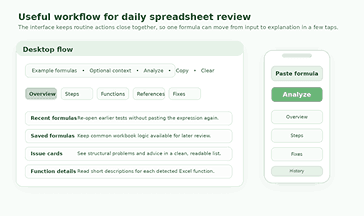
Excel Formula Breakdown Tool in use for understanding formulas, fixing issues, and reviewing calculation steps
Figure 4. Desktop and mobile flow keep formula review fast, readable, and easy to revisit.

Common Causes of Excel Formula Breakdown

There are many reasons Excel formulas can stop working. Even people who have used it before make mistakes because:

  • There are either no brackets or they are in the wrong place.

  • The wrong kinds of data are used.

  • The cell references are wrong.

  • There are spelling mistakes in functions.

  • The ranges don’t match.

  • The logical conditions are not set up correctly.

Common Excel errors include:

  • #VALUE!

  • #DIV/0!

  • #N/A

  • #NAME?

  • #REF!

  • Circular reference errors

Mobile-Friendly and Clean to Use

Readable cards on smaller screens

People often start spreadsheets on their computers but review them on their phones. During a meeting, a manager might double-check a formula. A freelancer can look at a client’s formula even without a laptop. A student can review a formula pattern during class or practice.
 
That’s why mobile layout matters. This tool uses clear cards, neat spacing, and easy-to-read text. Separate views are simple to scan on small screens. It avoids overpacking a small space. Instead, it highlights the main actions and makes the results clear.
 

Fast action flow on the go

When the main actions are together, using a mobile phone gets easier. You can paste, analyze, copy, clear, and switch views without having to search through a crowded screen. That saves time and keeps users focused on the formula rather than the interface.
 
A clean mobile flow makes quick checks easier. Users can check one condition, one range, or one result without a long setup. The Excel Formula Breakdown Tool lets you make quick decisions but still break things down on larger screens.

A Practical Walkthrough

Example one: IF with AND

Think about a logic pattern like this: =IF(AND(B2>50, C2<100), “Pass”, “Fail”). This statement checks whether B2 is greater than 50 and C2 is less than 100. If both conditions are true, it returns “Pass”; if not, it returns “Fail.” The formula is concise but involves multiple logical steps, making it useful to break it down into its parts.
 
This approach contrasts with more traditional formulas. The tool helps by breaking the logic into steps. It shows that B2 must be greater than 50 and C2 must be less than 100. Both must be true for the result to be Pass; otherwise, the outcome is Fail. This breakdown makes the pattern easier to follow.
 

Example two: INDEX with MATCH

Now think about a lookup pattern like this: =INDEX(B2:B10, MATCH(G2, A2:A10,0)). Like the previous example, this kind of formula is very helpful, but many people find it harder to read than a basic vertical lookup. Often, that problem stems from not understanding how MATCH passes the row position to INDEX.
 
Similarly, the tool helps with formulas like this by breaking them down into steps. It shows that MATCH traverses the lookup range, finds a position based on the value in G2, and then INDEX uses that position to retrieve the final value from B2:B10. The formula seems much less scary when you can see how it works.

Improve Workbook Quality with the Excel Formula Breakdown Tool

Better fixes, not just faster explanations

A formula explainer is more useful when it does more than repeat the expression. This Excel Formula Breakdown Tool also offers tips for improving formulas. It may suggest adding a missing wrapper, checking a volatile function, moving repeated numbers into cells, or using a cleaner lookup pattern.
 
Those suggestions help users improve workbooks over time. Users can spot habits that make spreadsheets harder to maintain, not just fix one mistake. This tool helps not only with fixing problems but also with updating and cleaning up workbooks.
 

Cleaner collaboration and maintenance

Working with spreadsheets is rarely solo. One person builds a model, another reviews it, and others may change it months later. A formula that only makes sense to its creator will be hard to maintain. Clear explanations reduce that risk.
 
Team members work more confidently when formulas are easier to read. They can see which ranges are used, learn why some conditions apply, and decide to keep or rewrite a formula. This makes workbook practices stronger and easier to maintain.

Built for Real Spreadsheet Use Cases

Daily reporting and dashboard checks

Much of your spreadsheet work is repetitive. Reports are updated daily, weekly, or monthly. After a data change, range extension, or sheet copy, a once-working formula can appear suspicious. In these cases, users want a quick explanation, not a full tutorial.
 
The Excel Formula Breakdown Tool is ideal for quick checks. If something looks wrong, users can paste the formula, read the overview, scan references, and view fixes. Make this part of your routine so reporting teams stay on track without losing clarity.
 

Audits, cleanup, and handover reviews

The same tool streamlines workbook reviews. Use it to check formulas, spot risky patterns, and confirm that logic matches the process. Its clear structure and reliable warnings make these tasks manageable.
 
Cleanup gets easier when you examine formulas individually, outside the workbook grid. Dedicated reading spaces let users focus on logic, references, and updates. This supports better decisions if a sheet must be changed, standardized, or updated with a new formula pattern.

A Cleaner Experience from Start to Finish

A focused interface

Before it feels powerful, a good analysis tool should feel clean. This interface keeps the formula area, action buttons, example chips, and result views close together, making the page neat and organized. The workspace helps users work efficiently and confidently by reducing clutter and making key features easily accessible.
 
That visual clarity matters because spreadsheet tools get confusing quickly. Users hesitate if the page is too full. They slow down if actions are scattered. A focused interface eliminates problems and helps the user get answers quickly.
 

Practical output for real decisions

The final output is useful because it helps make decisions. Users can verify the formula’s correctness, spot structural issues, grasp the underlying logic, and determine whether to retain, modify, or replace it with a clearer pattern.
 
That makes the tool useful in many situations. It helps with learning, fixing, reviewing, documenting, comparing, and improving formulas. In each case, it turns a complicated formula into something a person can use.

Excel Formula Breakdown FAQ

What is the Excel formula error explainer?

The Excel Formula Correction Tool analyzes Excel formulas, finds errors, explains them, and suggests improved formulas.
 

Can this tool fix all types of Excel formula errors?

The tool fixes common Excel errors, including circular references. It detects syntax, range, and logic errors.
 

Do I have to upload my Excel file to use this tool?

Just paste your formula in the box—no file upload needed.
 

What is the Formula Health Score?

The Formula Health Score shows how clean or reliable a formula is. Higher scores are better.
 

Is my formula data secure and private?

Yes. Formulas are reviewed but not kept or shared.
 

Does this tool support modern Excel functions?

Yes. It supports both old and new Excel functions.
 

Would this tool detect circular references?

Yes. It identifies circular references and explains safe changes.
Scroll to Top