Clean My Excel
CLEANER SPREADSHEETS
Clean My Excel for Everyday Spreadsheet Cleanup
Clean My Excel helps you organize values in a spreadsheet without the need to create formulas or macros. Import an Excel or CSV file, select the columns you want to clean, review the proposed changes, and download the result. It is well-suited for everyday tasks such as preparing contact lists, product catalogs, survey responses, and sales exports.
Start with a small set of changes so you can verify what each action does. On large screens, the worksheet preview remains visible alongside the controls. On mobile, records appear as cards with separate row and field navigation.
1
Import the file and select the worksheet.
2
Choose a cleaning action or column transformation.
3
Review the examples, then apply or cancel the change.
4
Check the results and export the necessary files.
IMPORT SETTINGS
Start with the Right Headers and Text Settings
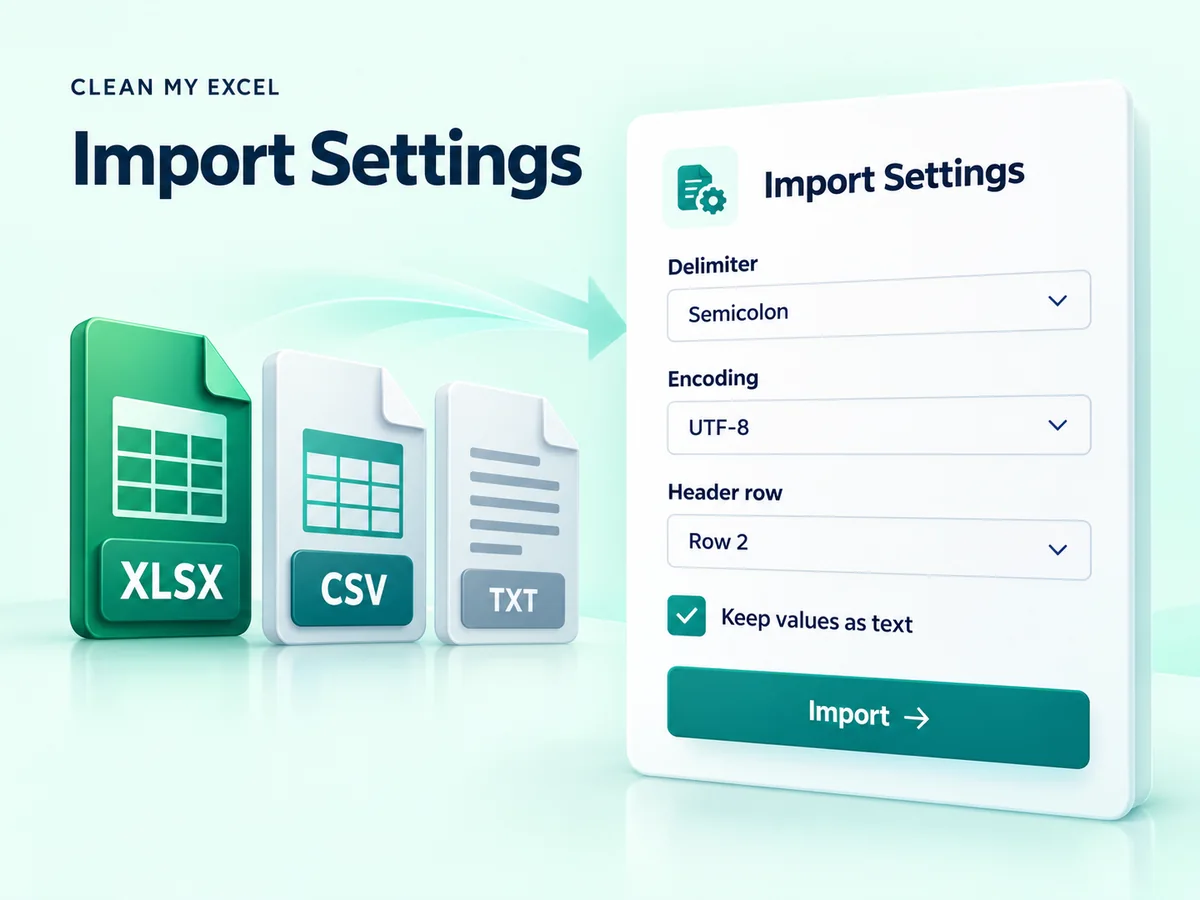
Import XLSX, XLS, CSV, or TXT files up to 10 MB. If the worksheet begins with a report title or a lead row, set the title/lead row to the row where the table actually starts. If the file does not contain column names, disable the Name option. The tool will automatically assign names such as Column 1 and Column 2.
For CSV and TXT files, if Auto-detect does not match the source, please select the delimiter and text encoding. You can use commas, semicolons, tabs, pipes, or other custom character separators. These settings apply to the next import.
When a column contains account numbers, product codes, or IDs like 00123, treat the CSV values as text. These identifiers may appear numeric, even though they are not numbers intended for calculation.
SELECTED COLUMN CLEANING
Clean the Fields You Choose
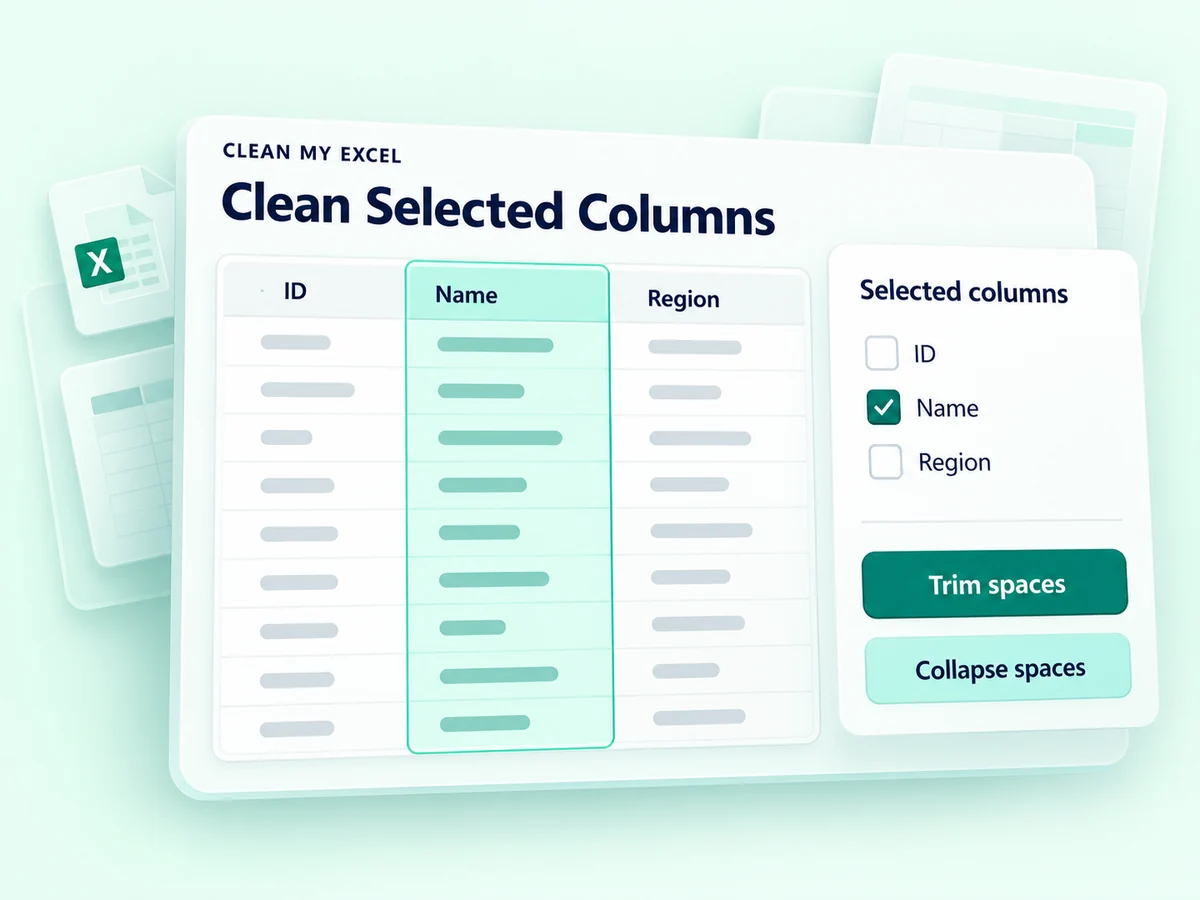
Use all fields to clean the entire worksheet, or select specific columns to work with particular fields. Trimming whitespace removes empty space from the edges of the text, while handling whitespace within the text reduces multiple consecutive spaces to a single space. This is useful when names or category labels contain inconsistent spacing.
Remove empty rows and columns to handle blank sections of the table. To facilitate grouped exports, fill empty cells in a selected column by copying the preceding non-empty values. Ensure that the value used to fill an empty field matches the value from the previous row.
Note: The Clean selected columns, remove empty rows option checks only the selected columns. It may remove a row that still contains values elsewhere. Review the affected rows before applying.
DUPLICATE MATCHING
Decide What Makes Two Rows Duplicates
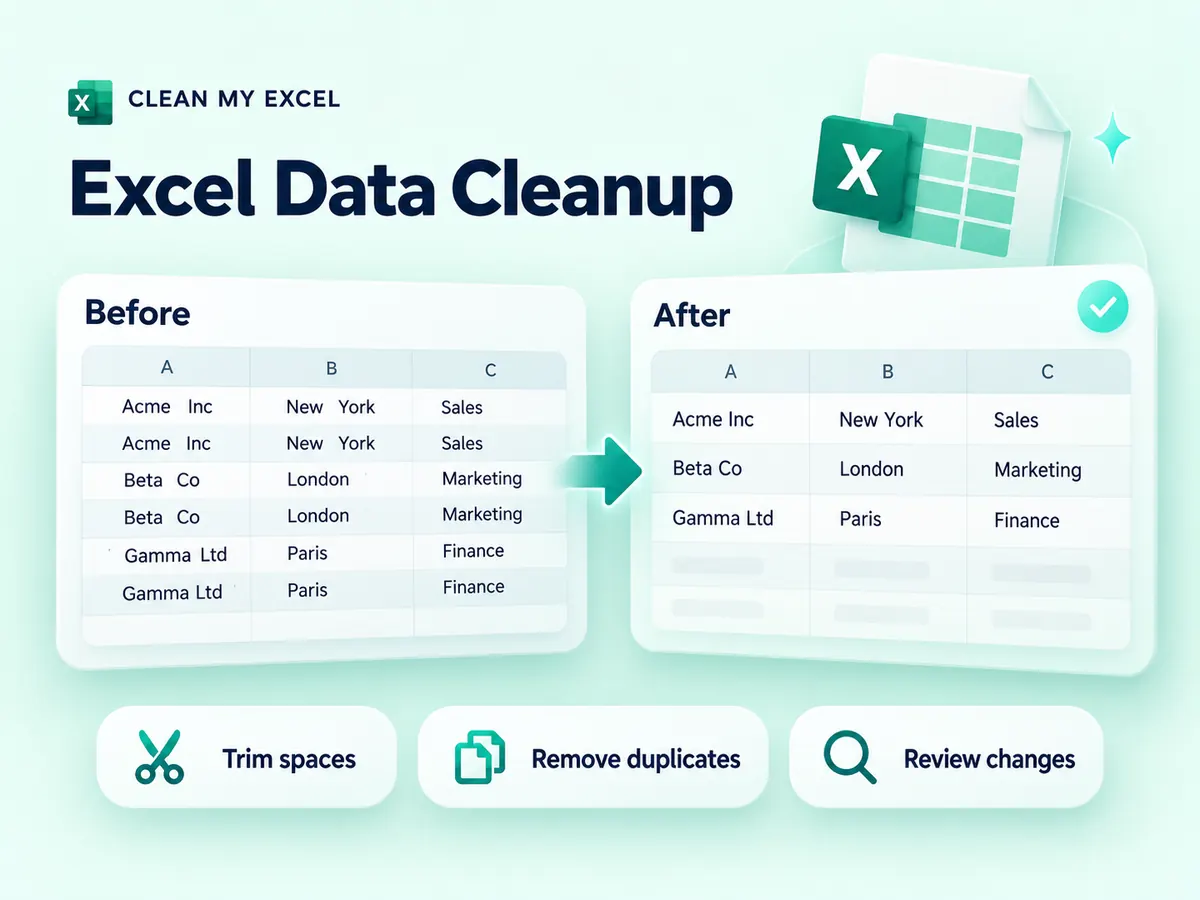
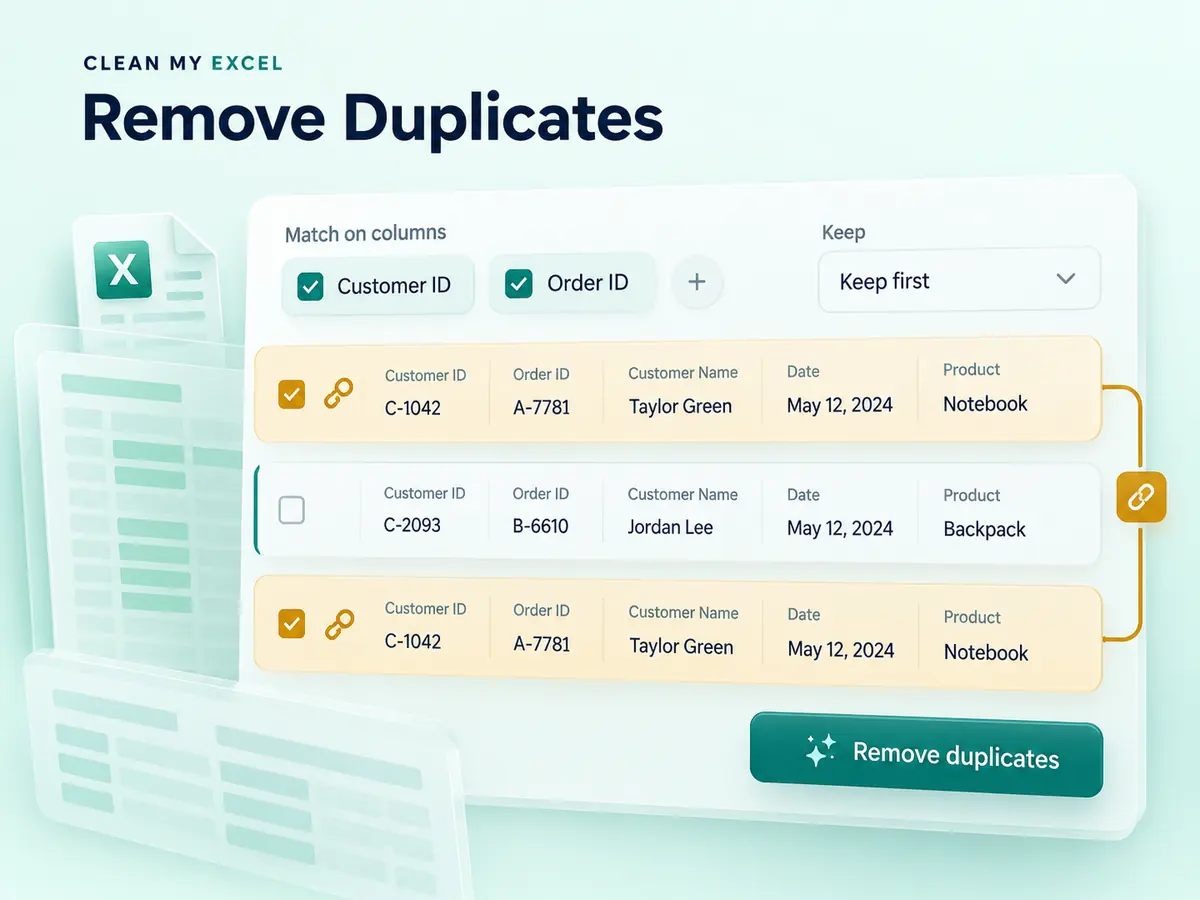
Removing duplicates can involve comparing entire rows or specific key columns. Choose whether to retain the first or last matching row, and specify the case sensitivity for text. Matching is based on the values within these keys. The system does not infer that names spelled differently refer to the same person.
For example, a customer may place multiple valid orders. Selecting the customer ID separately will treat these orders as duplicates. Selecting both Customer ID and Order ID preserves different orders while removing duplicates of a single order.
Customer ID
Order ID
With both keys
C014
A101
Keep first copy
C014
A102
Keep different order
C014
A101
Remove repeated copy
CONSISTENT VALUES
Standardize Text, Dates, and Numbers Carefully
Use the correct casing (uppercase or lowercase) to make labels more consistent. It converts recognized placeholder tokens (such as N/A and null) into null values. The strip HTML function removes markup tags from text, while find and replace supports literal text or regular expressions.
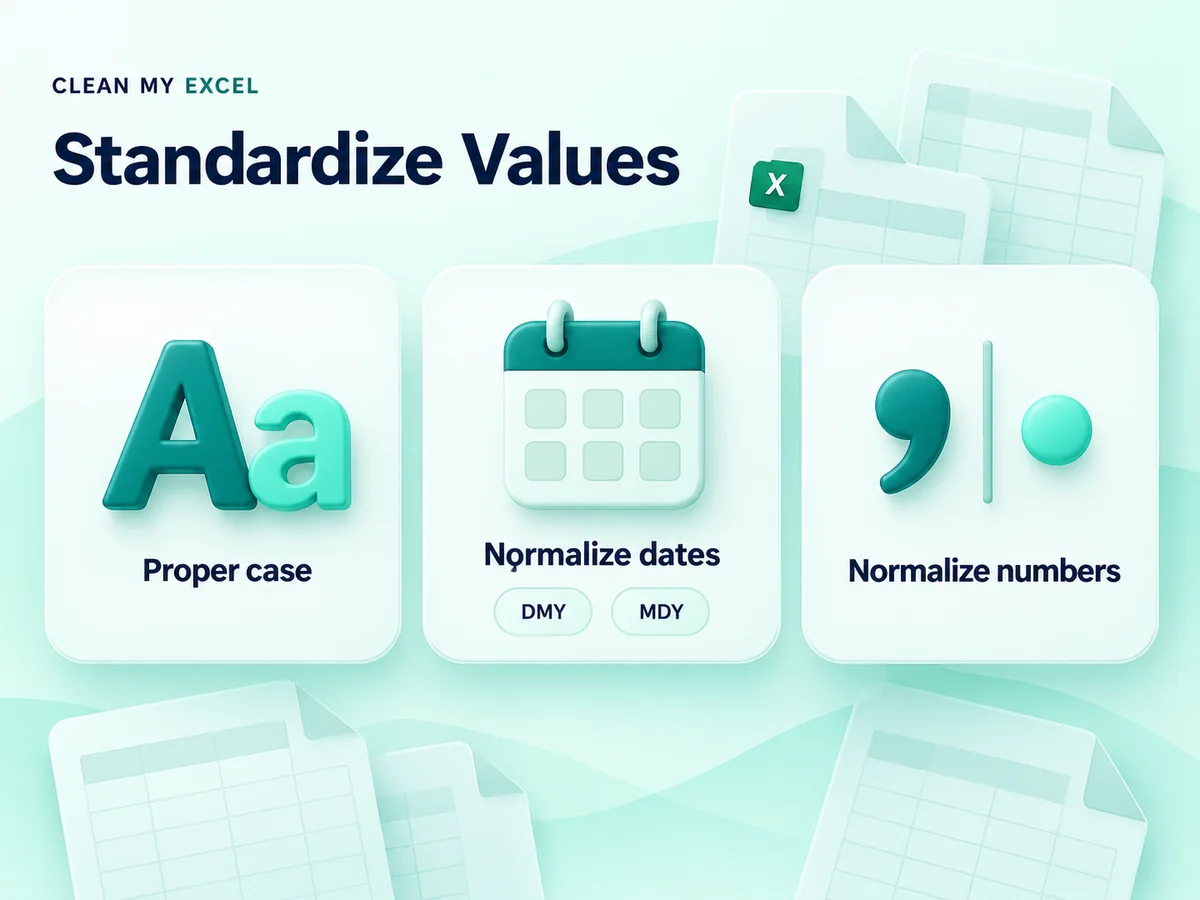
Normalize numbers can turn supported numeric text, such as 1,250.50, into a number. Standardized dates accept supported first-year dates or local four-digit year dates using your choice of DMY or MDY order. Invalid date text remains unchanged.
Check for ambiguous dates before normalizing the data: 03/04/2026 could mean April 3rd in a DMY format, or March 4th in an MDY format. Select only the relevant columns to ensure that codes, labels, and dates are handled exactly as you intend.
COLUMN TRANSFORMATIONS
Split, Merge and Rename Spreadsheet Columns
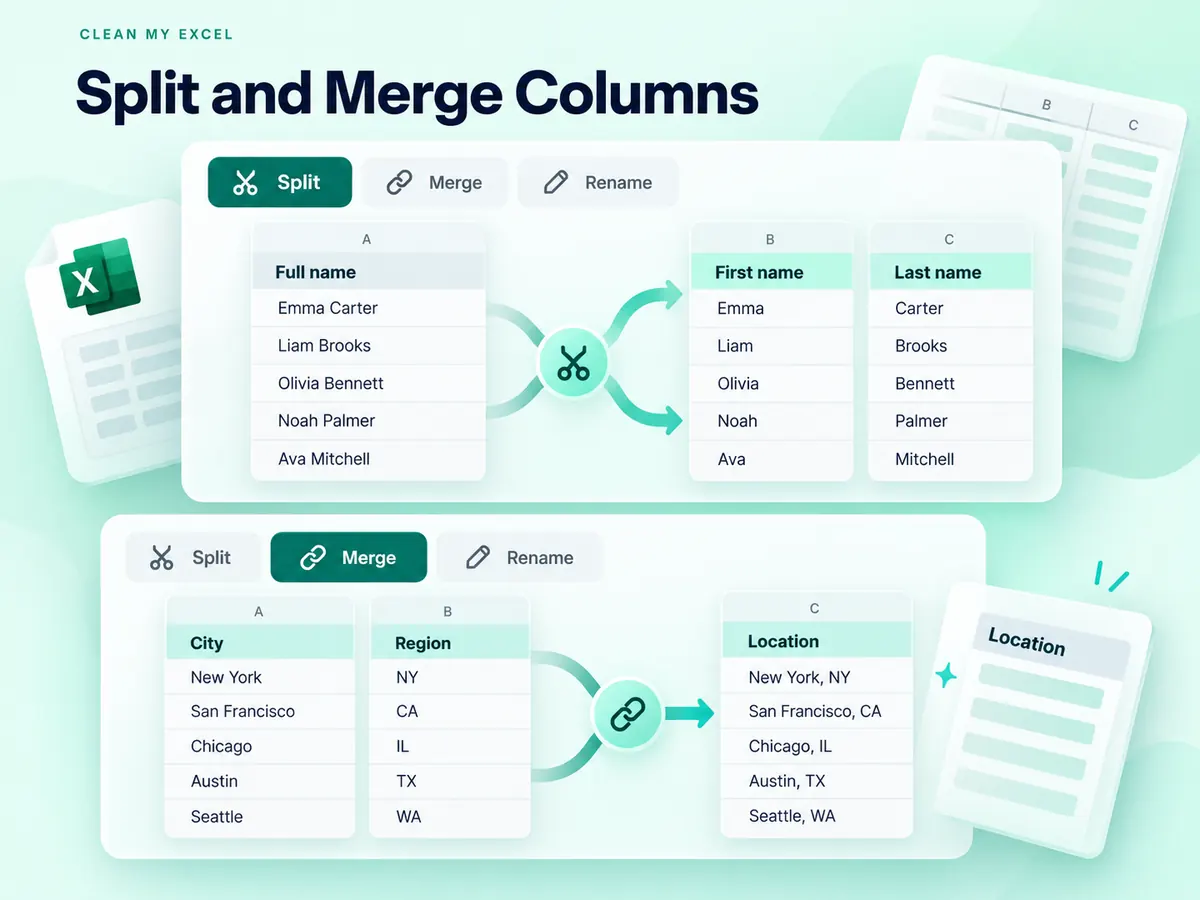
Split separates columns based on your chosen delimiter, creating between two and eight parts. You can retain the original columns for comparison. If a value contains more segments than the specified number of parts, the remaining segments are included in the final part rather than being discarded.
Combines two columns into a new field using a delimiter of your choice—for example, joining City and Region with a comma and a space. You can rename headers for clarity or delete columns that you no longer need. Each change includes a description before it is applied to the worksheet.
These controls reformat existing values. They do not estimate missing information or interpret addresses within validated address fields. After exporting, use an online spreadsheet editor if you need to perform further cell-by-cell editing.
REVIEW BEFORE APPLYING
Check the Changes Before You Commit
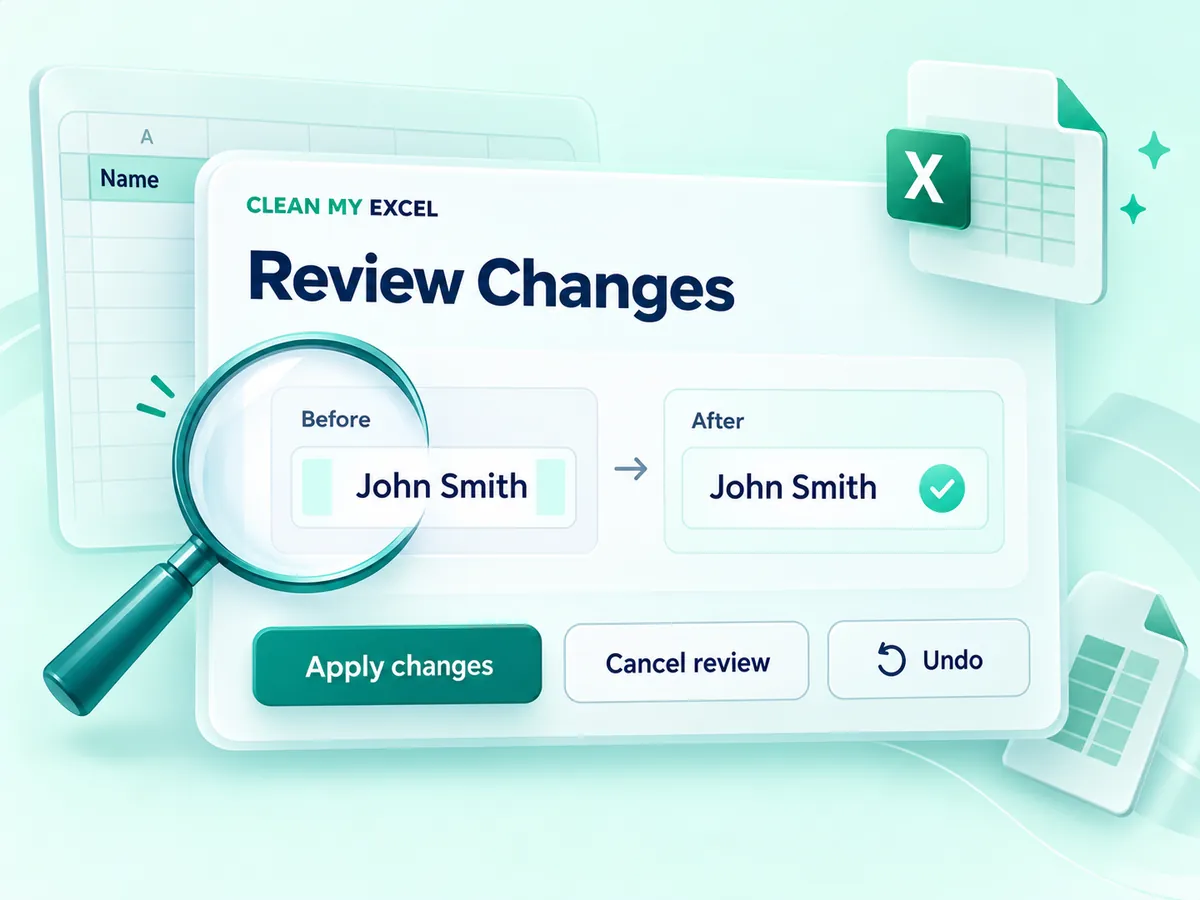
The cleanup action begins with a review of the affected data and the patterns present before and after the change. Applying a change determines the outcome, whereas canceling a modification leaves the worksheet in its original state. The examples illustrate up to 32 changes, while the total count encompasses the entire process.
Use Undo to return the sheet to its previous state, or Redo to restore a change that was previously undone. Reset also opens a review and can be undone after applying. The history is specific to each worksheet and persists for the duration of the current session. It is not a saved backup of your workbook.
After deleting rows or making changes to columns, compare a few key entries against figures you know to be accurate. Keep the source files separate—especially if the cleaned file is intended for use in reporting or other systems. Microsoft also recommends a backup copy before data cleanup.
REUSABLE PRESETS
Save a Cleaning Routine for the Next File
The cleaning, transformation, and modification actions you apply become recorded steps. When you regularly receive similar exports, save this configuration as a named preset. A preset can consist of up to 40 steps, and you can store up to 20 presets within the storage limit of the browser tool.
Presets refer to columns by their exact names. Therefore, the column order can vary, provided that the required headers match. If a column is missing or a subsequent step is incorrect, the preset will reject the entire configuration without applying any part of it.
Loading the steps of a preset does not automatically clear the sheet. First, preview the preset, and apply it only when the result is as desired. Removing a recorded step modifies the reusable routine, but it does not undo any previous changes made to the worksheet. Use the Undo function for that purpose.

FILTERS AND ANALYTICS
Find the Rows You Need and Check the Totals
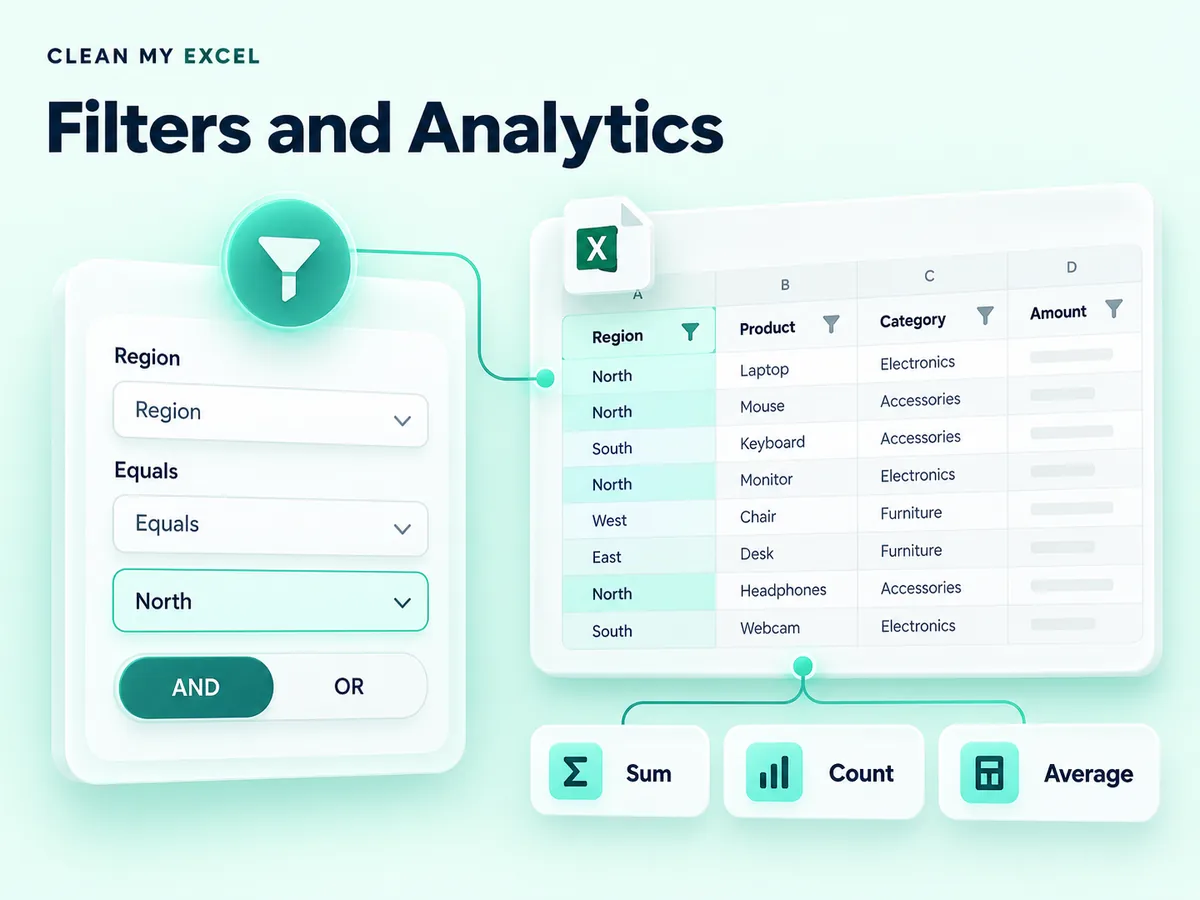
Search across the entire sheet or add up to 10 column-based criteria. Use AND if all conditions must be met, or OR if meeting just one condition is sufficient. By applying text checks, filtering for empty cells, performing numerical comparisons, and setting date ranges, you can further refine the preview without deleting any rows.
Analytics can use all sheet rows or the filtered view. Build a pivot with sum, count, average, minimum, or maximum, or calculate a numeric column summary. The diagram provides an alternative view of grouped output; up to 50 groups are displayed in the chart, while the anchor export includes each group.
After cleaning your data, export it as a CSV and use SPSS Lite for descriptive statistics or correlation analysis.
Preview filters do not limit cleanup operations. They still apply to all rows in the selected worksheet. If the next step requires calculation rather than cleanup, Excel's formula generator can help you develop the formula.
EXPORT OPTIONS
Choose the Right XLSX or CSV Download
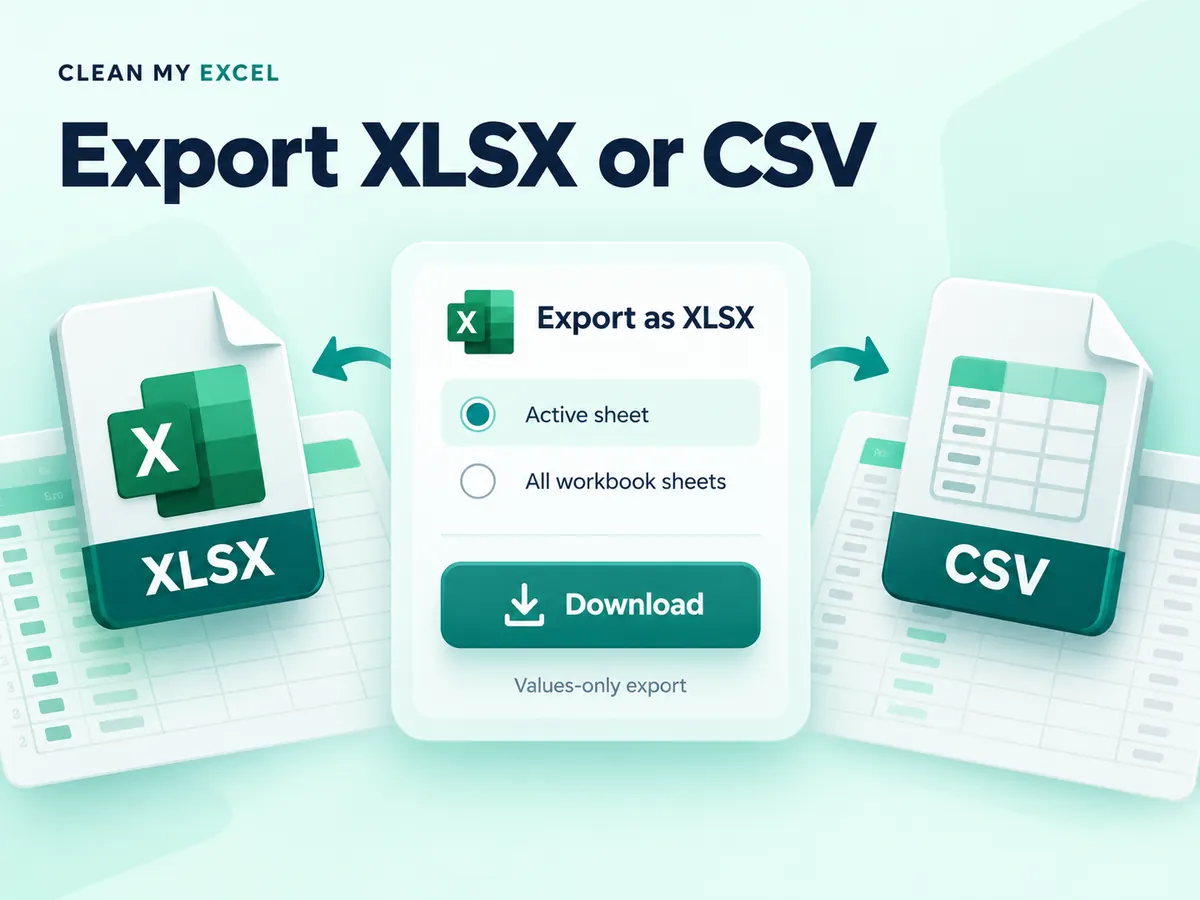
Export the active worksheet to XLSX or CSV using all rows or the filtered view. In the case of XLSX, all pages in a workbook contain each row in each worksheet and preserve the page names, including pages that have not been edited. CSV exports only the active page. Rows and columns of sample sheets never restrict exporting.
Choose XLSX if you want text identifiers to remain written as text in Excel. CSV contains text fields without workbook cell types, so Excel can interpret a code like 00123 as a number when it is opened. Microsoft's guide explains how Excel imports CSV values.
Important: The export includes only values. It does not preserve formulas, original formatting, charts, or macros. Formula values are based on the results cached in the source archive. The tool does not calculate missing formula results.
LOCAL PROCESSING
Understand What Stays in Your Browser
Instead of requiring you to upload worksheet content for cleaning, the cleaner reads and processes it directly within your browser. The previews displayed during editing do not overwrite the original files stored on your device. You decide for yourself when to download individual results.
The current workbook, pending changes, and undo history are cleared when the page is reloaded. Your light or dark preferences and previously saved settings may remain in your browser's storage. Defaults include settings such as replacement text, so review this text before saving routines that contain sensitive terms.
The relevant website may have its own cookies or analytics systems. Processing a spreadsheet locally does not cover all aspects of how the website handles data. Review the privacy policy and follow your organization's guidelines regarding confidential documents.

QUICK ANSWERS
When a File or Result Needs Another Look
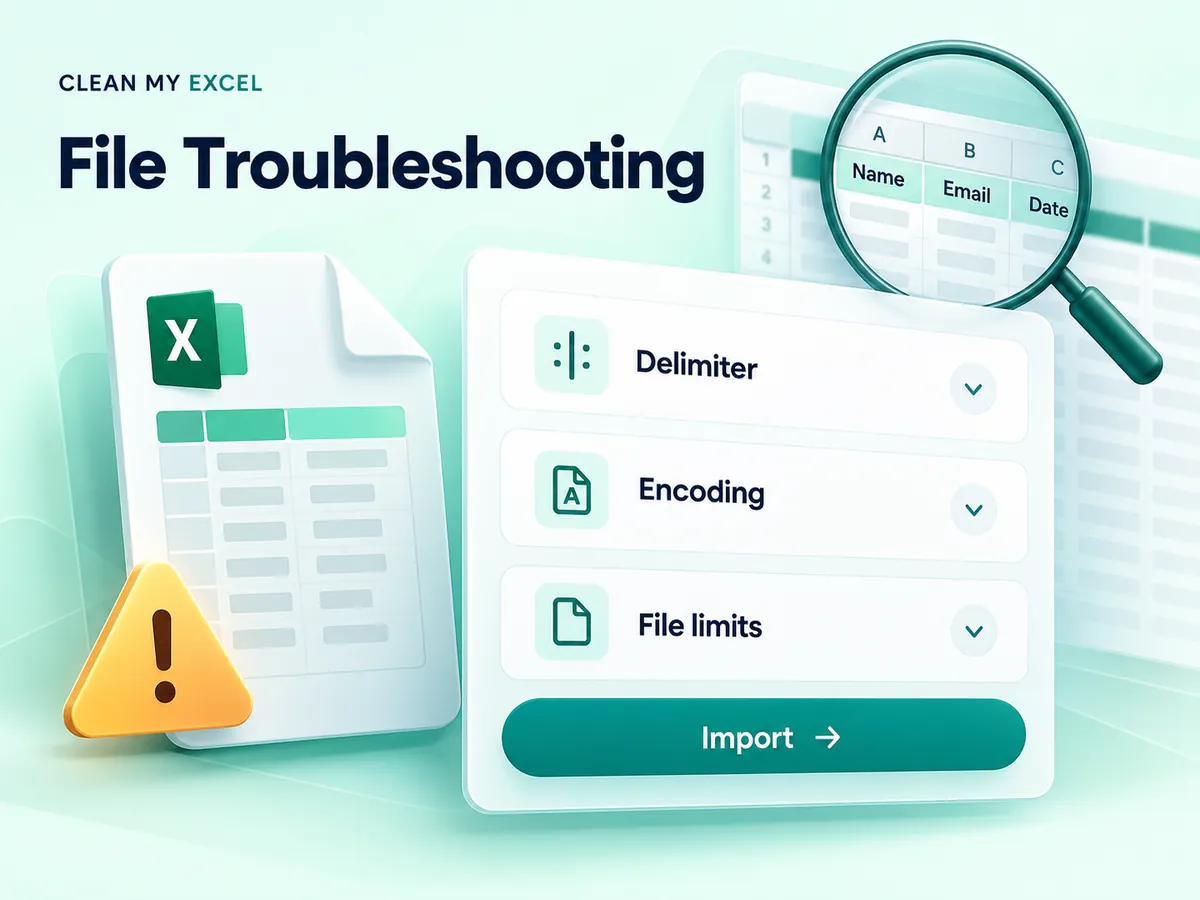
Why did my CSV file open in a single column?
The delimiter may not match the file. Select a comma, semicolon, tab, pipe, or an appropriate custom character in the import settings, and then import the file again.
Why did an identical row remain even after removing duplicates?
Check the selected keys, extra spaces, case settings, and value types. The number 1 and the text 1 are different values. The comparison here is exact, not fuzzy.
Why is the file rejected even though it is under 10 MB?
In a single sheet, including its header, the limit is 250,000 cells and 500 columns. The total limit for cells in a workbook is 1,000,000. Encrypted, unsupported, or excessively large workbook files may also be rejected.
What should I do if the processing time runs out (times out)?
Try using a smaller file or a simpler regular expression. Cancel the processing if necessary. If the import fails, the currently loaded workbook remains in place.
Can the cleaner correct errors in formulas or restore missing digits?
It does not perform formula calculations, nor does it restore precision that has already been lost in a numeric cell in Excel. Use the source data to verify important values.